
Lead matching preferences tell Automattic for Agencies which client projects your agency wants to receive. The matching system uses your saved preferences to shortlist your agency for Hire an Expert requests, the form clients use on WooCommerce.com, WordPress.com, Jetpack.com, and Pressable.com to find an agency. In this guide, you will learn how to set up your lead matching preferences in the Automattic for Agencies portal.
To set up lead matching preferences, your agency must be a Pro Partner or higher and have an approved partner directory application. Pro Partners receive lead distribution, priority support, and co-marketing. For what each tier unlocks, see tiers and benefits.
You can’t set lead matching preferences until your agency is approved for at least one partner directory: WooCommerce.com, WordPress.com, Jetpack.com, or Pressable.com. Reaching the Pro Partner tier does not replace the directory application. If you haven’t applied yet, complete your application first by following the agency directory listings guide.
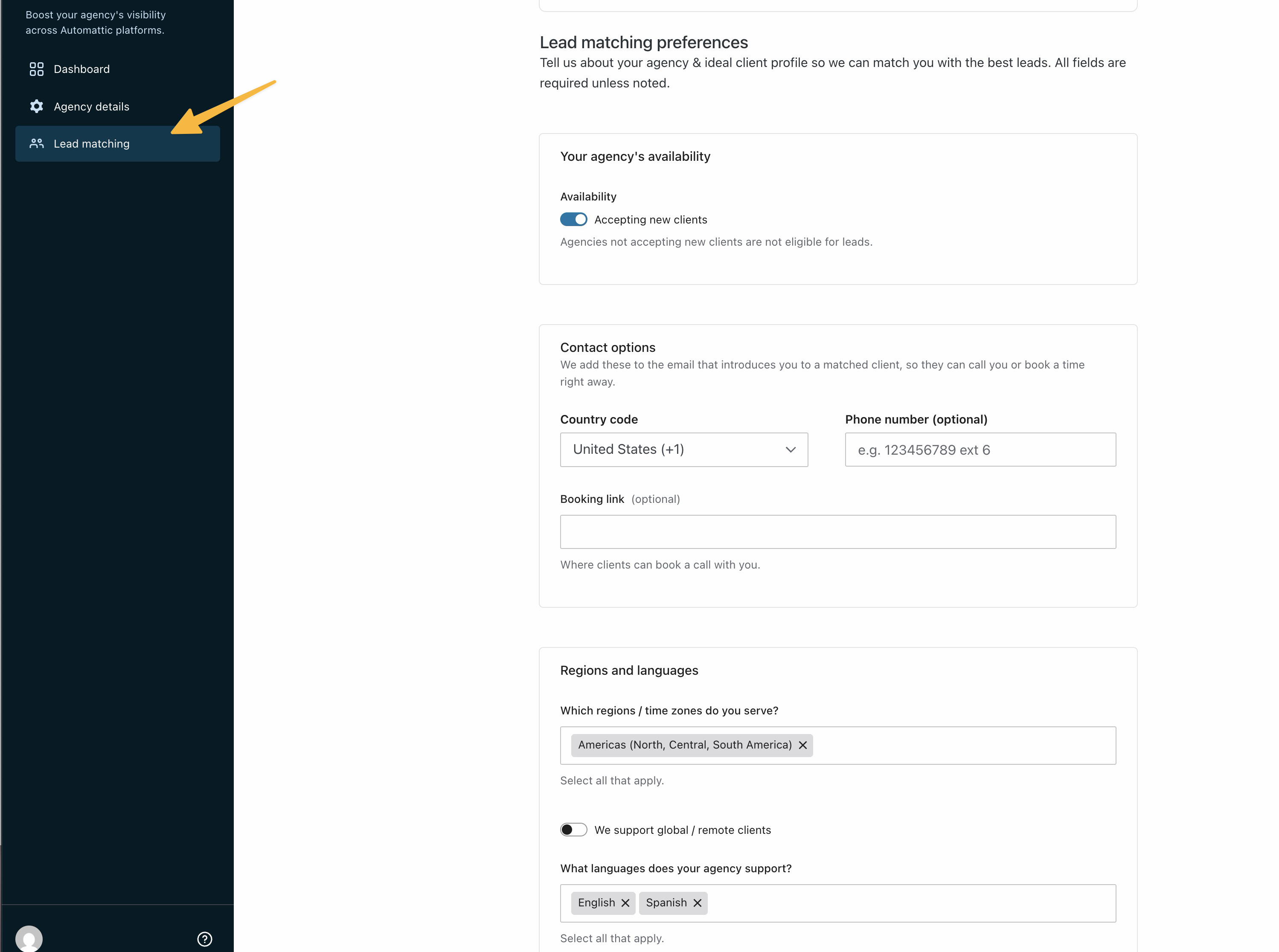
You set up your lead matching preferences on the Lead Matching page in the Automattic for Agencies portal.
📌
Reminder: All questions are required unless the form marks them as optional. The form takes about five to 10 minutes.
Complete these steps to set up your lead matching preferences:
- Sign in to the Automattic for Agencies portal.
- Open the Lead Matching page. In the Sidebar, go to Partner Directories → Lead Matching, or open the Lead Matching page directly.
- Answer each question in the form. The form covers the regions you serve, languages, business types, project types, budget ranges, and more.
- Click the “Update Preferences” button to save your answers.
- Check that the page shows your saved answers.
After you save your lead matching preferences, the matching system uses your answers when it shortlists agencies for client requests. When a client submits a Hire an Expert request, the system compares the request with the saved preferences of eligible agencies and shortlists up to three. A coordinator reviews the shortlist and sends the introductions.
If your agency is chosen, you receive an introduction email from your agency’s relationship owner at Automattic, with the client copied. Matching includes only agencies that are accepting work.
More accurate answers lead to better-fit leads. To change your preferences later, return to the Lead Matching page, update your answers, and click the “Update Preferences” button again.
The Lead Matching page requires the Pro Partner tier or higher and an approved partner directory application. Confirm that your agency meets both requirements for setting up lead matching preferences. Reaching the Pro Partner tier alone does not make the page appear.
Saving your preferences does not guarantee a lead. Leads depend on client requests that fit your answers. Leads also rotate across eligible agencies, so an agency that received a lead recently can rank lower for the next one. Your agency must also be accepting work to be included in matching.
- Apply for partner directory listings: Apply for a partner directory listing.
- Agency tiers and benefits: See what each partner tier unlocks.
- Access leads: See how leads reach your agency.
- Edit your partner directory agency profile: Update the profile shown in the directory.

