
With Automattic for Agencies, you can manage your clients’ products without the burden of managing the billing. Assemble a cart of products, send a request for payment to your clients, and earn commissions based on what they purchase.
Once your clients pay, you’ll have the ability to manage the products and assign products to sites within Automattic for Agencies. You clients will handle the billing of said products in their own Automattic for Agencies profile.
To receive commission for WordPress.com hosting, Pressable hosting, Jetpack plugins, and WooCommerce extensions, it is required that you use the referral cart process described below.
Referral links are automatically emailed to clients and remain valid for 14 days. You can also manually copy the link from your dashboard and send it to a client in a personal email.
Please note: you can add a single WordPress.com site or select any Pressable hosting plan to a referral cart. If you need a client to purchase more than one WordPress.com site, you can send them separate referrals.
1. Navigate to the Marketplace on your Automattic Agencies dashboard and toggle on referral “mode” at the top of the page:


2. Using the left sidebar, choose ‘Hosting’ to refer a client to hosting, or ‘Products’ to refer a client to WooCommerce extensions or Jetpack plugins. You can build a single referral cart which combines both hosting and extensions so that your client needs to only make a single purchase.
3. Click on your cart at the top right of the screen to view your selection, then click on the cart icon to access the Checkout screen.

4. After you click on Checkout (see step above), you’ll see a summary of the products you have in your cart:
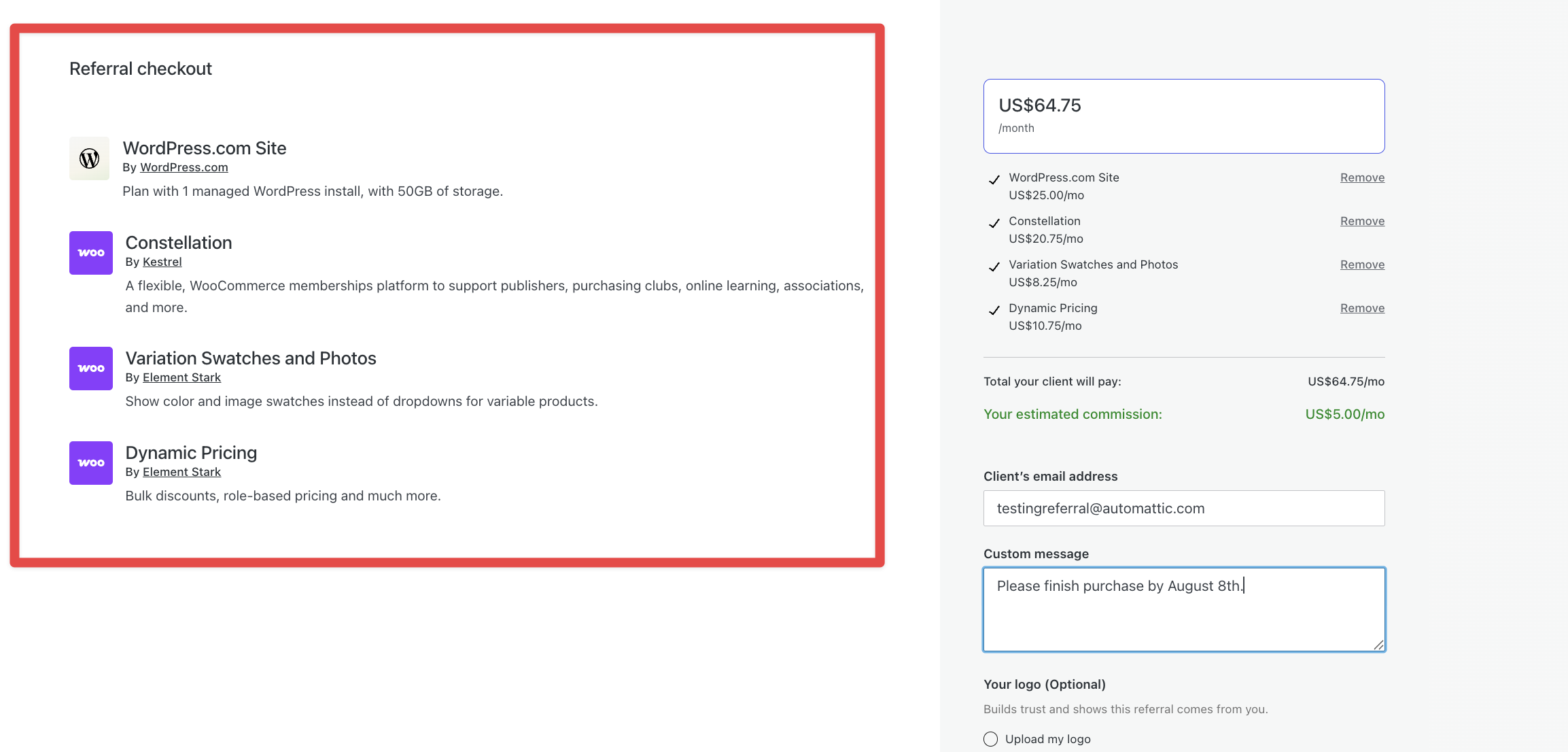
5. Fill out the form on the right side of your screen with your client’s email address, adding a note about the products you’re including and an invitation to purchase them, mentioning any deadline, if needed. You can also choose how your agency logo appears in the client‑facing checkout and email.
6. Choose to either send the link to the client by email via the Automattic for Agencies mailing system OR to copy the link to your clipboard and send it to them manually yourself. Please note: if you copy the link manually, we will not send an email to the client.
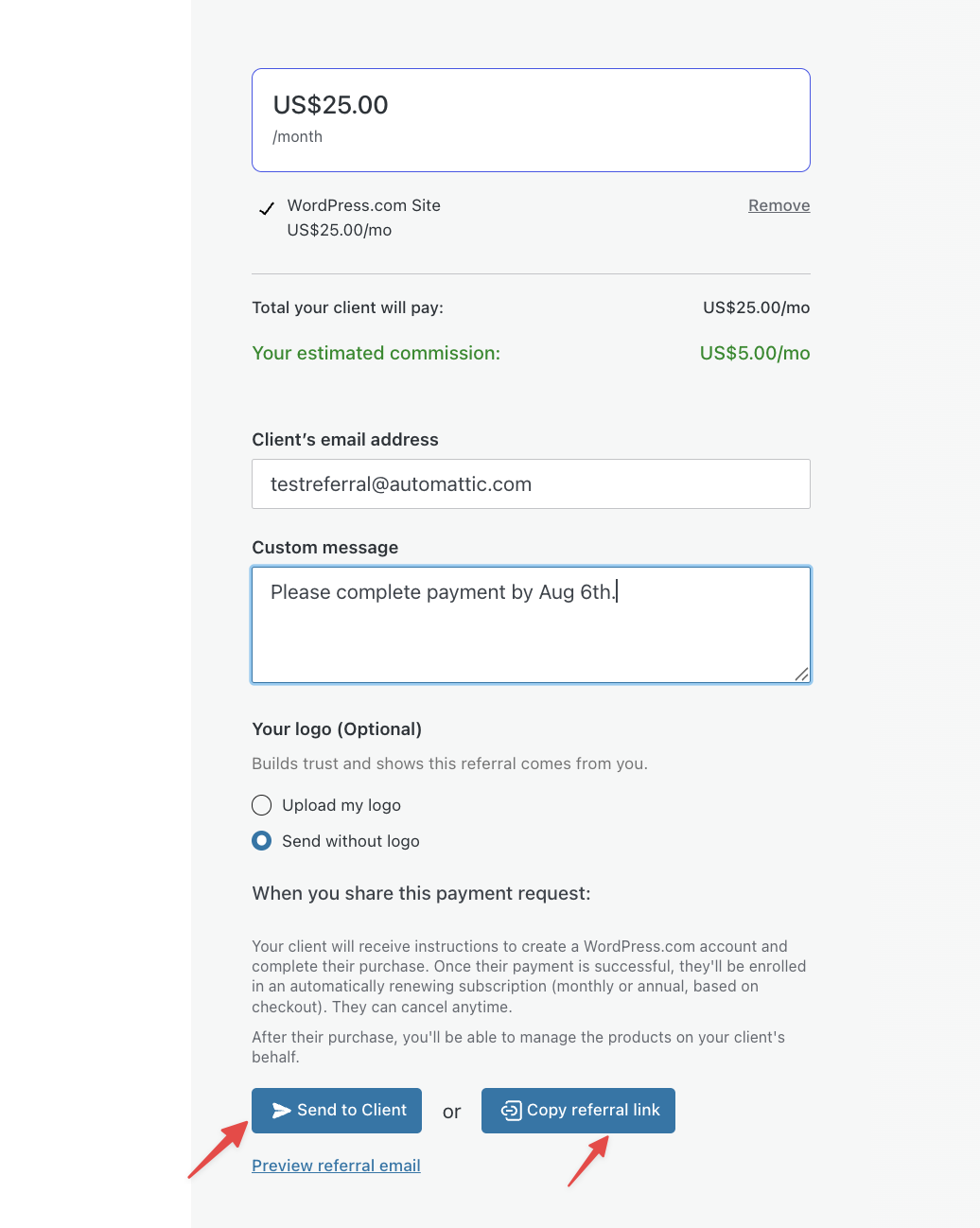
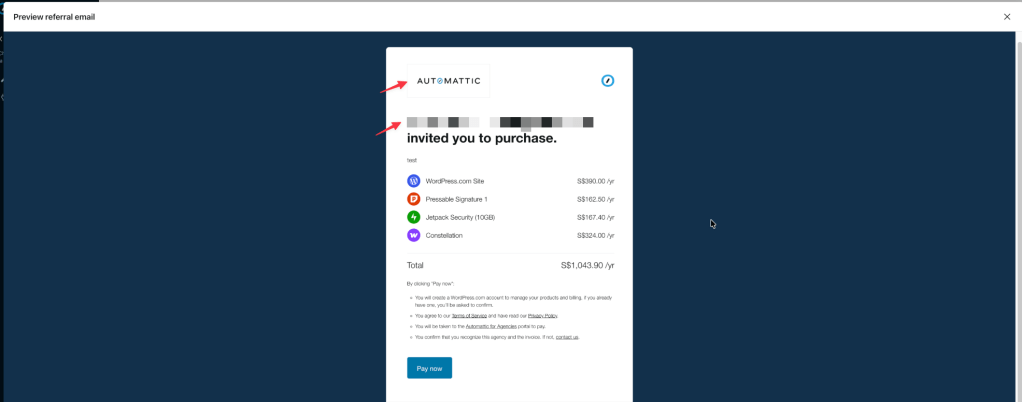
7. (Optional) Click Preview referral email to review your logo, message, and products before sending, then choose to send the email through Automattic for Agencies or copy the referral link to send manually.
When you send a referral from the Marketplace checkout, you can now decide if and how your agency’s logo appears in your client’s checkout and email experience. You’ll see a Logo section on the checkout screen with three possible choices, depending on your setup:
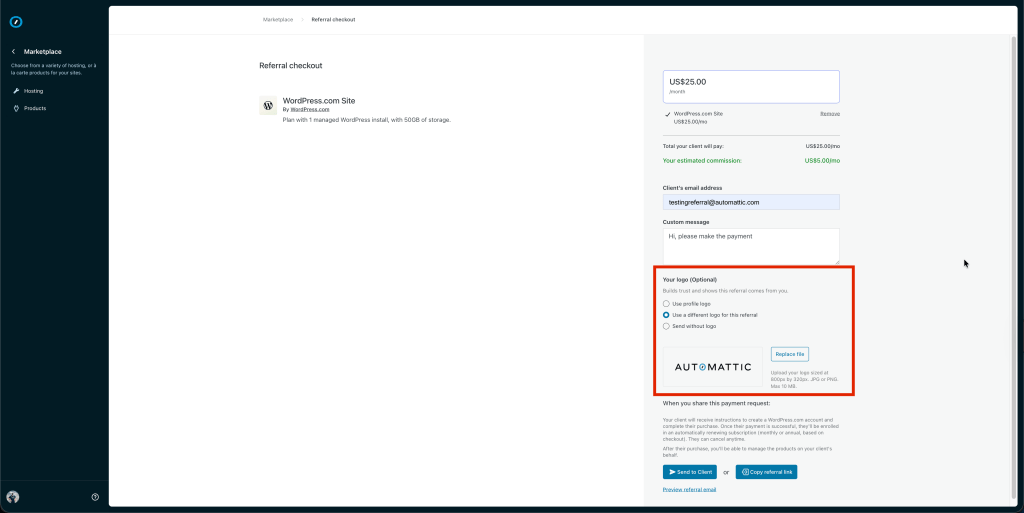
- Use profile logo – Uses your company logo from the Partner Directory, when one is available.
- Second logo option – This option adapts to your existing logos:
- “Upload my logo” if you don’t yet have a profile logo or saved referrals logo.
- “Use this logo” if you have a saved referrals logo from a previous checkout but no profile logo.
- “Use a different logo for this referral” if you have a Partner Directory profile logo and want to use a one‑off logo just for this referral.
- Send without logo – Sends a referral without any agency logo if you prefer not to include one.
When you upload or reuse a logo in this section, use a wide, banner‑style image (recommended 800×320px, JPG or PNG, up to 10MB).
You can replace the logo before sending, and once you send a referral with that logo it will be saved and available to reuse in future referrals.
If you haven’t set any logo yet, “Send without logo” may be selected by default, but you can switch to a logo option at any time before sending.
After your clients pay, you’ll receive an email notification to let you know they made their purchase.
You can also visit Automattic for Agencies dashboard > Referrals to view referrals grouped by each client and check their status. Here you’ll see a single entry for each client to whom you have sent referral links. The status represents the current state of those referrals:
- Pending – the client has yet to make a payment for any of the referrals which were sent to them.
- Active – the client has paid for the referred product and it is active. It could be assigned or ready to assign.
- Canceled – the client made a payment for referral(s) but those products have since been canceled and are no longer active.
- Mixed – displays if a client has a combination of referred products which are pending, canceled, or active. Commonly shows if multiple referrals have been sent at different times.
- Archived- it is now possible to archive existing or pending referrals
From Referrals on the Automattic for Agencies dashboard, you can open all referrals sent to a specific client by clicking the entry associated with their email address. From there, you can use the action menu on a specific referral to archive, resend, or copy a referral link.

You can use this feature to clean up any pending referrals. You can also archive active referrals, which will also revoke the product(s) associated with the referrals.
When a pending referral is archived, the client can no longer use that link to make a payment.
You’ll be able to see which orders were archived by clicking the client email on your Referrals dashboard. If the client has only archived referrals, they’ll be moved to the bottom of your client list to keep the dashboard clean and organized.
If a client has misplaced the link, you can resend it directly from the Automattic for Agencies dashboard using the action menu associated with the specific referral for that client.
If you need to copy a referral link to send to a client to whom it was previously emailed, you can do this here.
When a client completes a purchase, you’ll have access to the licenses they purchased on your dashboard. You can use these to create a new WordPress.com site or to assign extension/plugin licenses to a site.

1. From your Automattic for Agencies dashboard > Referrals, click on the client’s email address to open their referral purchases.
2. For hosting, you’ll see the option to create a new site. You can follow this guide to create and configure a new WordPress.com site.
Once your client completes a Pressable purchase, you’ll be notified via email. Navigating to Purchases > Licenses, you’ll see their purchase available to ‘Manage in Pressable’

Clicking through this link will open your own Pressable account, which can also be accessed directly from my.pressable.com.
When your Pressable account has a client referral purchase site license available for use, you’ll see a new option to choose which account the site is created under when choosing ‘Add Site’ at Pressable. Changing this account selector dropdown to the client’s account will apply one of their referral purchase licenses to the new site rather than using any licenses you have purchased directly yourself. This setting will also ensure the client has access to the site via their own Pressable account.
In the screenshot below, the dropdown has been changed to the client account on which a referral was recently purchased. You’ll see that they have 0/3 sites in use because they bought a 3 site plan via a referral link. Completing site creation here will use one of those available licenses and is the final step in the Pressable referral process.

In order to assign a plugin or extension purchased via Automattic for Agencies to a client site, you’ll need to be an administrator on their site.
For sites not hosted at WordPress.com, you’ll also need to connect the site to your Automattic for Agencies dashboard by following this guide.
- From your Automattic for Agencies dashboard > Referrals, click on the client’s email address to open their referral purchases.
- For plugins or extensions there will be the option to assign them to a site.
- Click ‘Assign to Site’, choose the site on which you want to use the extension/plugin, and follow the steps to complete assigning the plugin or extension to the site.
- Once assigned, you can then download and install Woo extensions and Jetpack plugins manually from the link shown on your Automattic for Agencies dashboard.
- Once installed on a site to which a license is assigned, the extension or plugin will be fully functional.
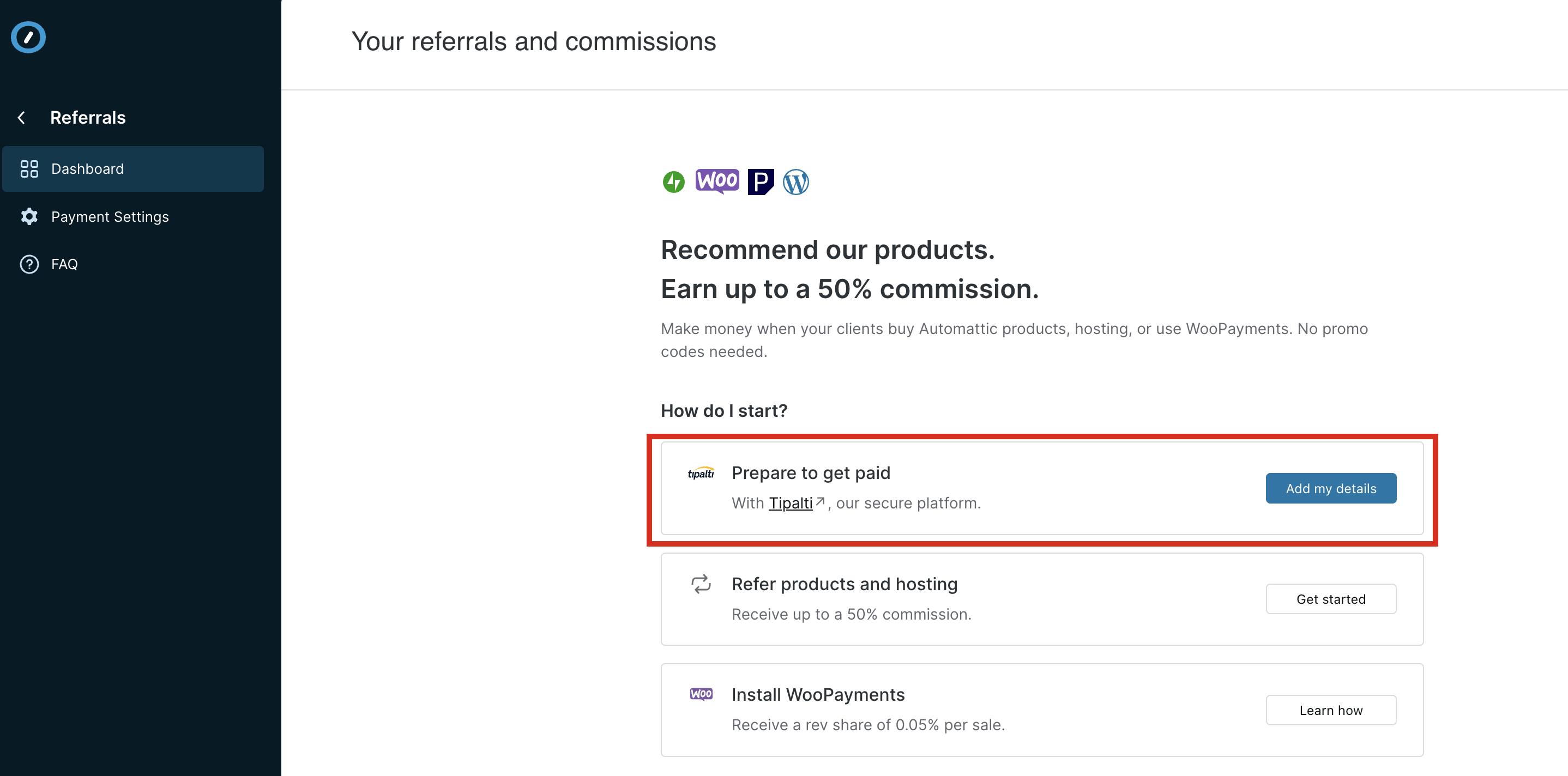
In order to receive payment for client referrals and other program incentives, you’ll need to set up your payment information with our payment processor, Tipalti.
- Navigate to Automattic for Agencies > Referrals on your dashboard.
- Add your payment and tax details by clicking on “Add my details” button in the “Prepare to get paid” section. Please note, Automattic cannot provide advice on completing the tax section of these documents.
- Submit the information
There may be a review period for some documents, and the Automattic for Agencies team will follow up with you if any changes or additions need to be made.

You can learn more about earnings and payouts in our guide here.
Your client will receive an email in their inbox; it will come from agencies@automattic.com and will mention your agency name. They’ll be prompted to log in to the Automattic for Agencies client portal, including creating a WordPress.com account if they do not have one. They can then complete the payment.
You can visit the Client Billing & Payments guide to learn more about your client’s experience.
Automattic requires that your clients’ create a WordPress.com account to use referral purchases. This is for several reasons:
- Purchase & product management — Clients’ need an area to manage all payment methods and billing if they are paying for Automattic products directly. As their agency, you’ll have access to manage products that you’ve referred to them, but the client retains ownership since they are paying. In the event the agency / client relationship is severed, the client must have access to the product they are paying for.
- Security — Automattic needs to be able to verify any users that are purchasing and using Automattic products on their sites, regardless of who is managing those sites and products.
- Support — Automattic needs to be able to help our customers if there are issues with any of their sites, or products.
To help agencies streamline client onboarding and reduce billing-related questions, we’ve created a co-brandable resource: “What to Expect: Your Experience with Automattic-Powered Billing.” This document answers common client questions about the referral billing process, why invoices come from agencies@automattic.com, and how to manage payments and accounts with Automattic’s secure platform.
How to use this resource:
- Make a copy: Agencies can duplicate this document for their own use.
- Co-branding: Add your agency’s name, logo, and branding to personalize the experience for your clients.
- Share with clients: Use this resource during onboarding, in support communications, or as a reference to proactively address client concerns about billing and account setup.
This resource is designed to complement the referral cart and billing process described in this article, helping your clients understand why they’re being billed directly by Automattic, how to manage their WordPress.com accounts, and how your agency continues to provide personalized support throughout the process.
By sharing this guide, you’ll:
- Reduce client confusion and support requests about billing.
- Build trust and transparency in your agency-client relationship.
- Reinforce your agency’s partnership with Automattic and commitment to client service.
If you have questions about customizing or distributing this resource, please contact our support team. We’re here to help you deliver a seamless experience to your clients.
 Automattic for Agencies - Knowledge Base