
Our free development licenses are designed to give agencies the flexibility to work on projects without paying for hosting. With development licenses, you can build up to five WordPress.com sites at a time and share progress with clients without making the sites public.
When you’re ready to go live, launch the site and billing will begin. We’ll use that launch date as the license start date in your next billing cycle. Upon launching your site, the development license will be freed up for your next project.
Each agency can use up to 5 free development licenses at a time. To create a new WordPress.com site with a development license, click “Add sites” at the top right-hand corner of Automattic for Agencies Dashboard and select the “Start building for free” tile.
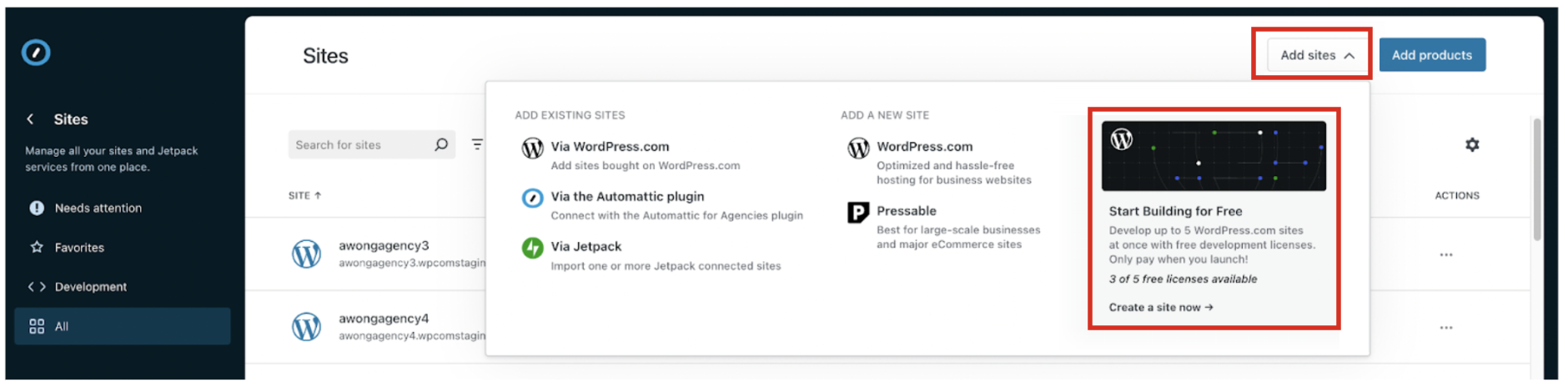
Note that if you have used up all available free development licenses, the “Start Building for Free” tile will be disabled. You will have to release a development license before you can create a new site for free.
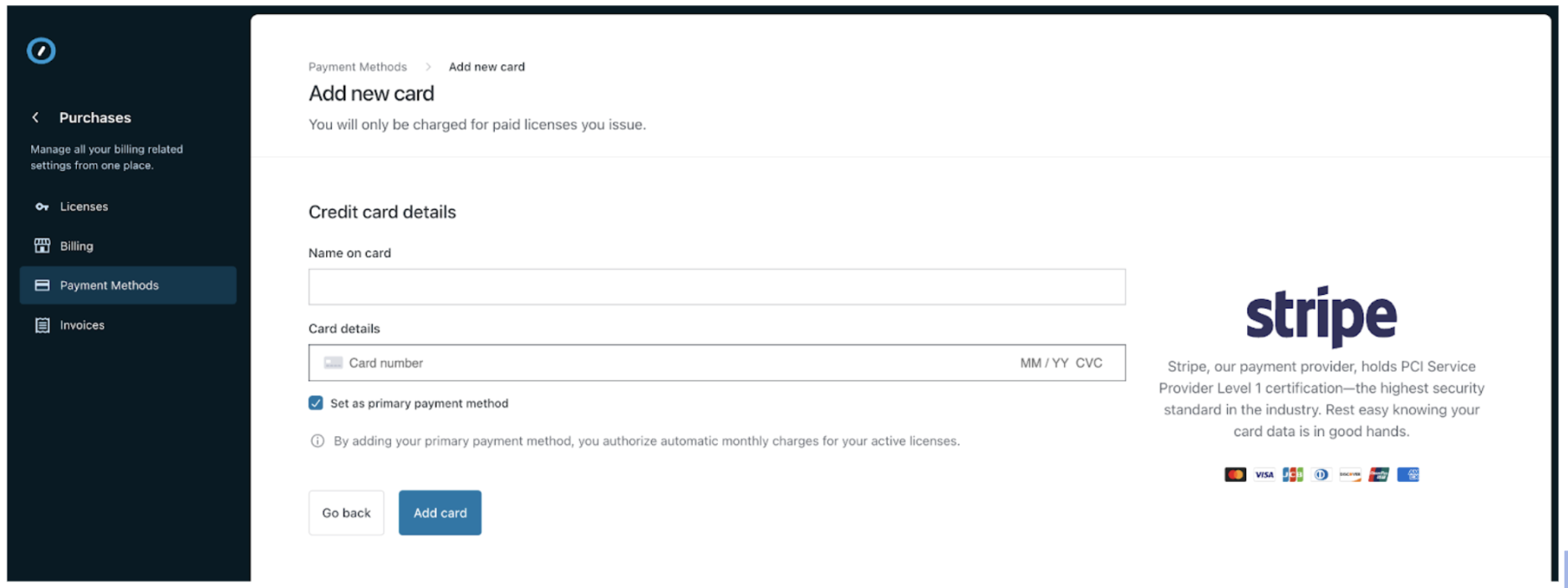
Upon clicking “Start building for free”, if there is no payment method on file for your account, you’ll be prompted to add a payment method. This will verify your account and ensure a seamless experience when your site is ready to go live. Rest assured, you will not be charged until you launch the site.
Once a payment method is supplied, you will be prompted to configure your new site. Note that development sites will default to the “white label” experience, where clients are denied access to WordPress.com Help Center and hosting features. You may update the “white label” setting after the site is launched.
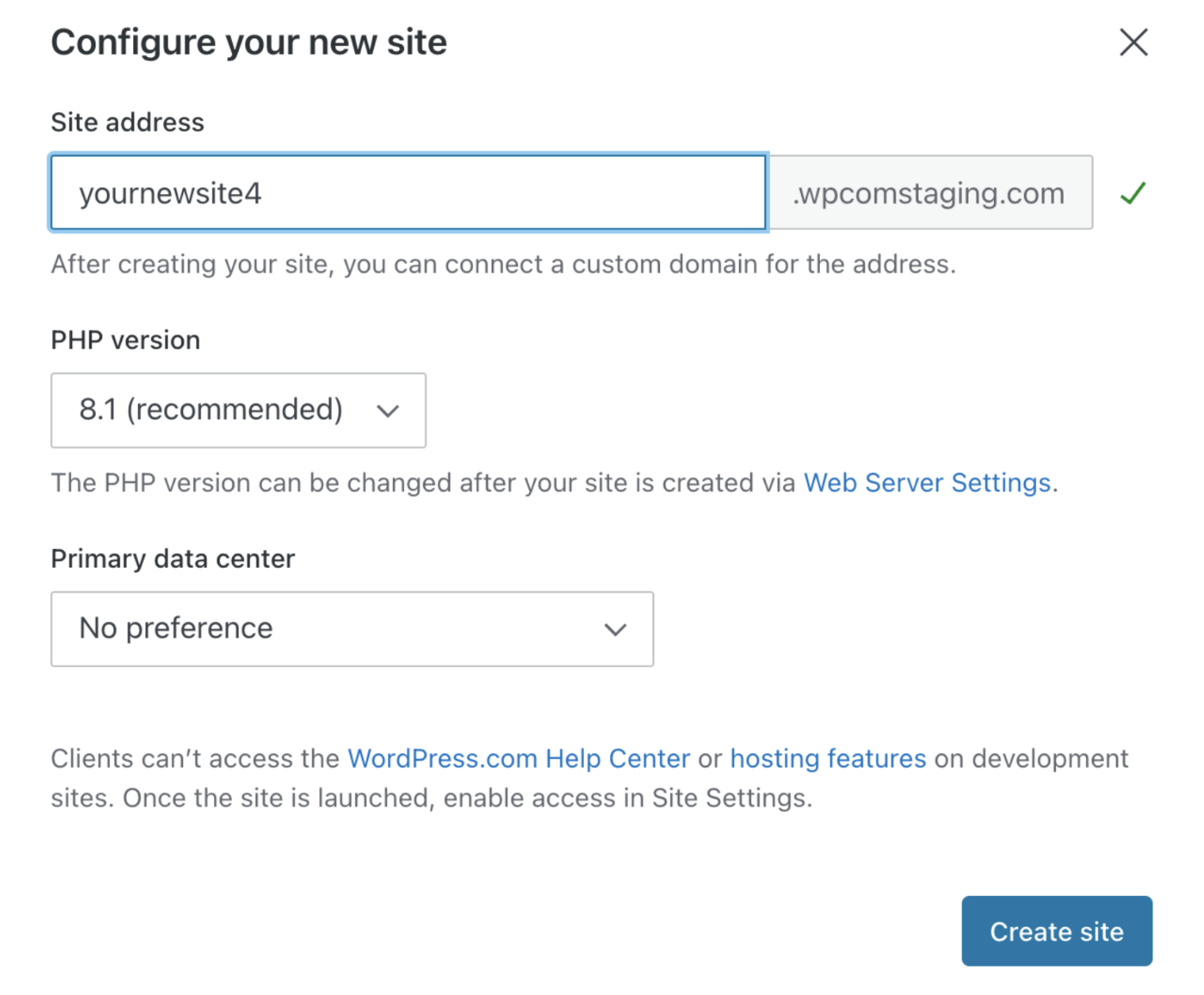
Proceed with site creation by clicking “Create site”. Once the site is created, you will see the following banner

It may take a few minutes for the newly created site to show up in the Sites Dashboard. Sites created with a free development license should be listed with a “Development” badge.
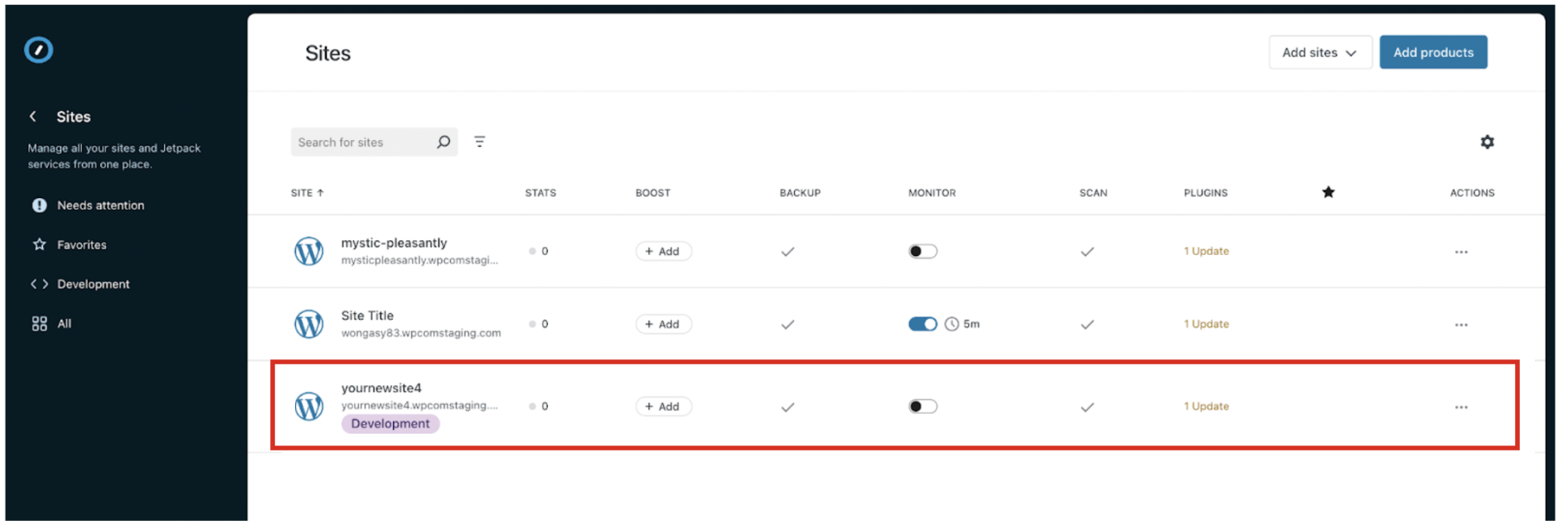
WordPress.com sites associated with free development licenses can only be accessed by logged-in users. When public users visit the site, they will see a standard “Coming Soon” page.
Oftentimes, it is not desirable to invite clients to join a site that is under construction. You can use the “Share site for preview” feature to share work-in-progress with clients without granting login access.
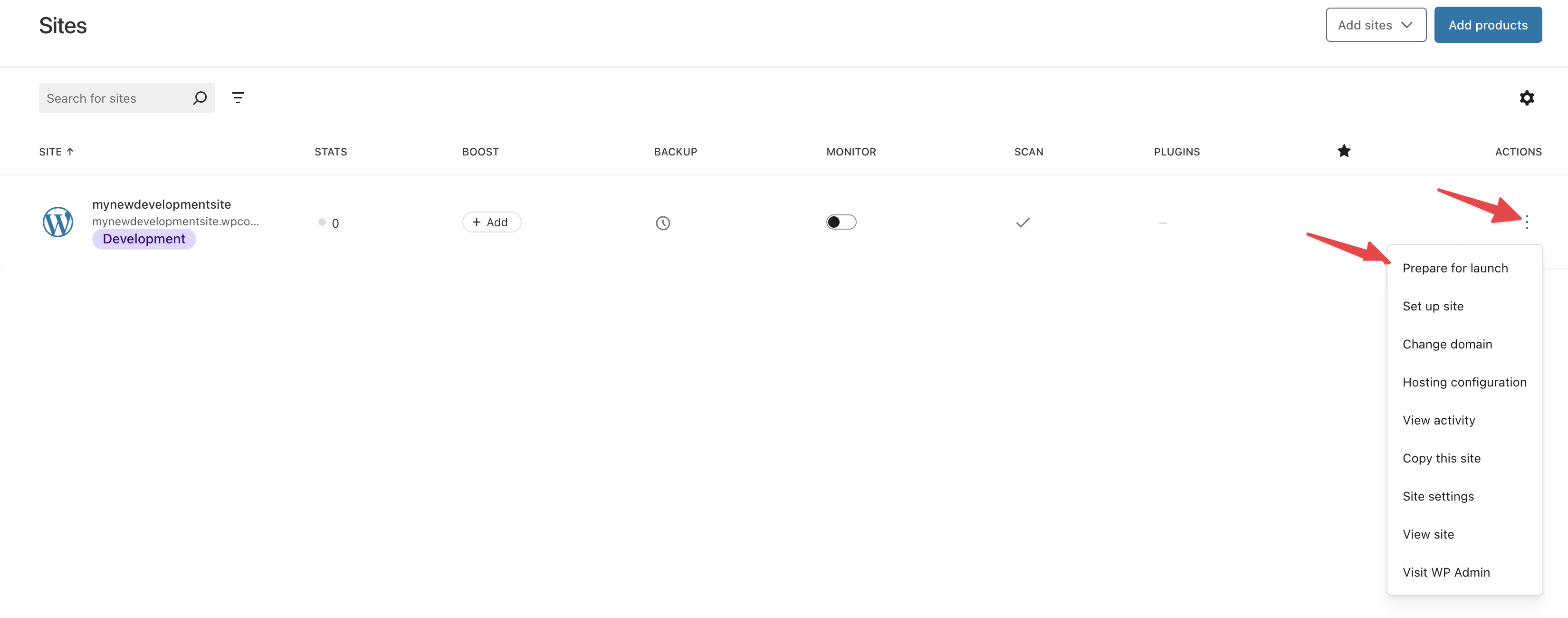
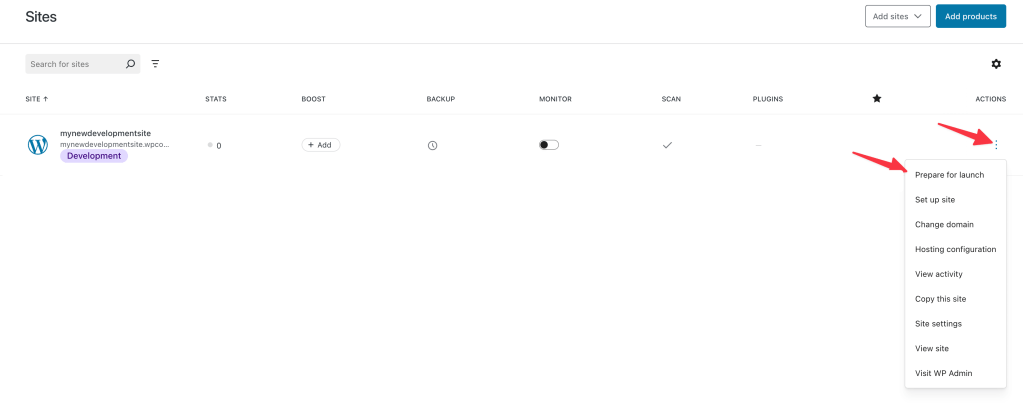
From the Sites Dashboard, open the actions menu for your site and select “Prepare for Launch”.
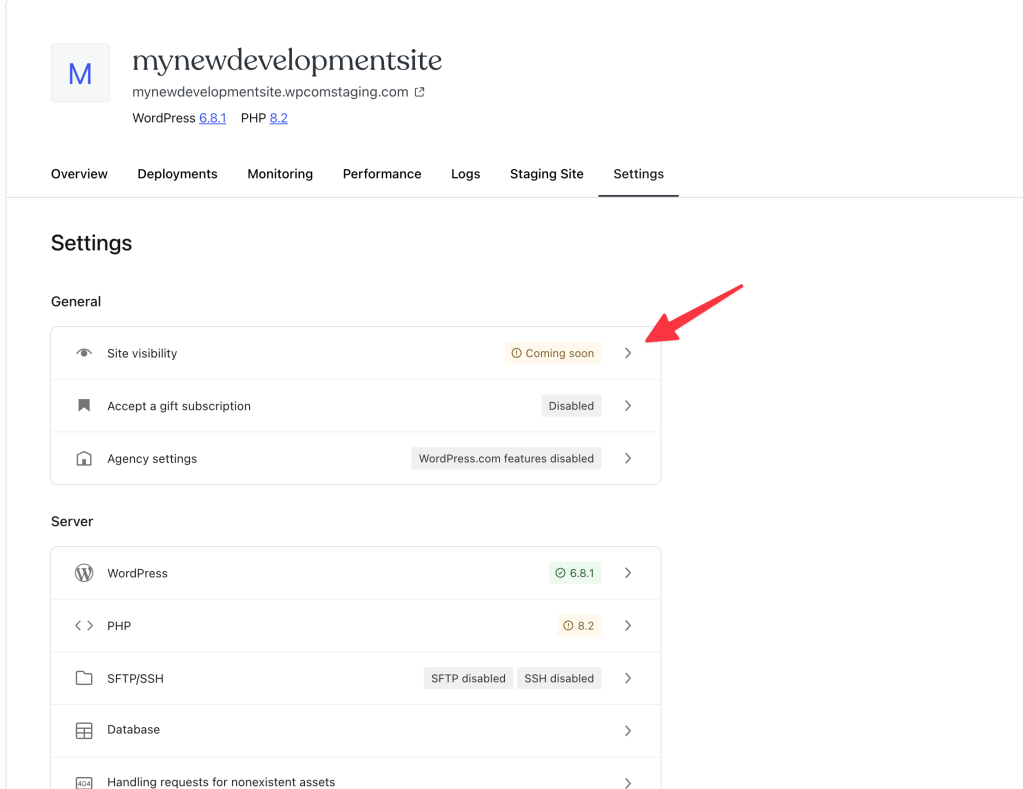
Then choose ‘site visibility’. There, you’ll see the option to share a preview with clients using a private link. Toggling this link will provide you a link to share with clients which will remain available for 72 hours.
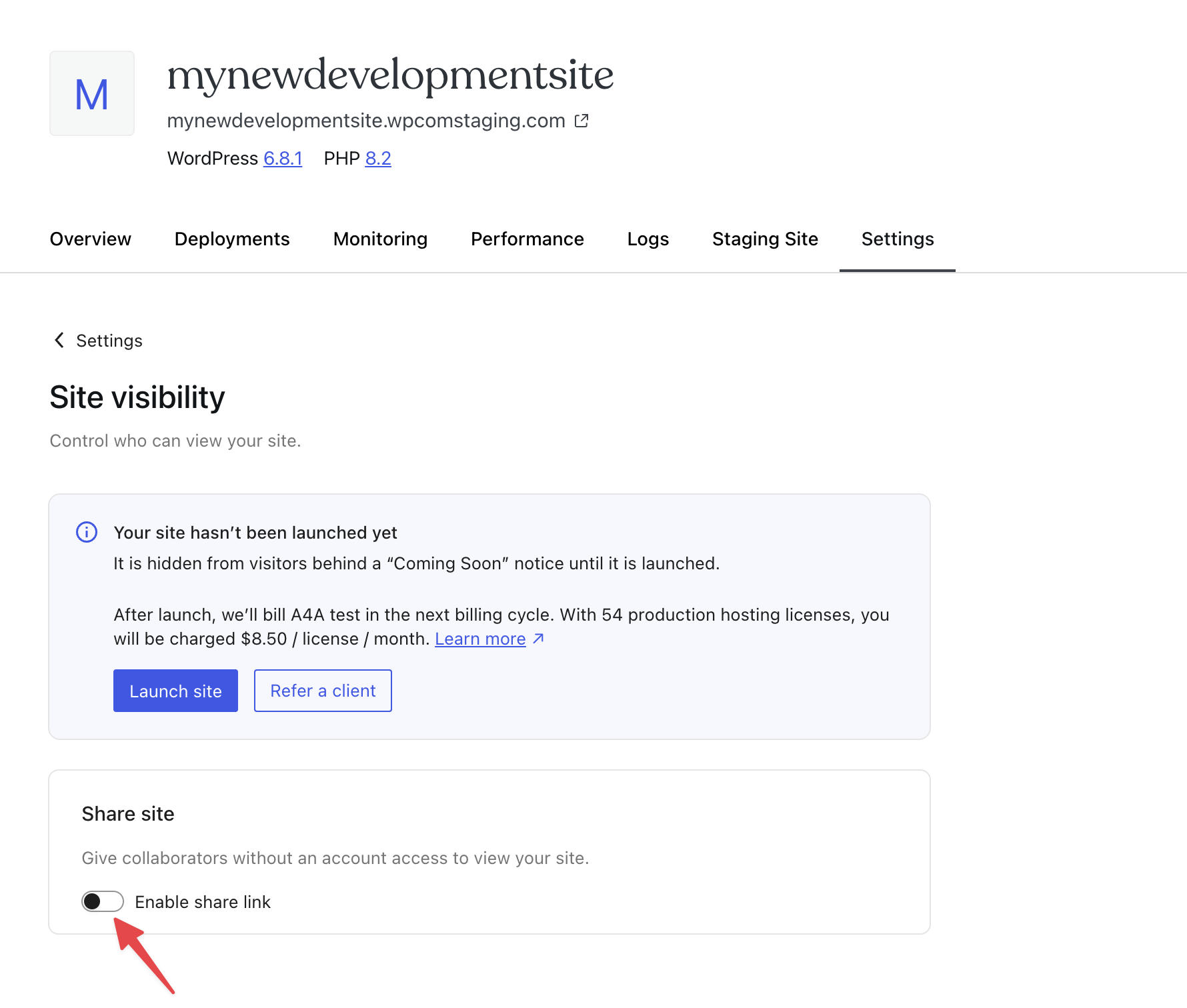
Once the preview link expires, the toggle will be automatically turned off and your client will no longer be able to view the site. You can also turn off the toggle manually to revoke access.
You’ll be able to choose to pay for the license yourself with your bulk discount, or to refer the site to a client for purchase to generate revenue share.
To launch your site to the public, click “Prepare for launch” in the actions menu for your site from the Sites dashboard.
Then click ‘site visibility’ to see your launch options:
To pay for the site yourself, click ‘Launch Site’. This will open a confirmation window showing the amount you’ll be charged for the site in the next billing cycle based on the number of production hosting licenses you own. Learn more about volume discount for WordPress.com hosting products.
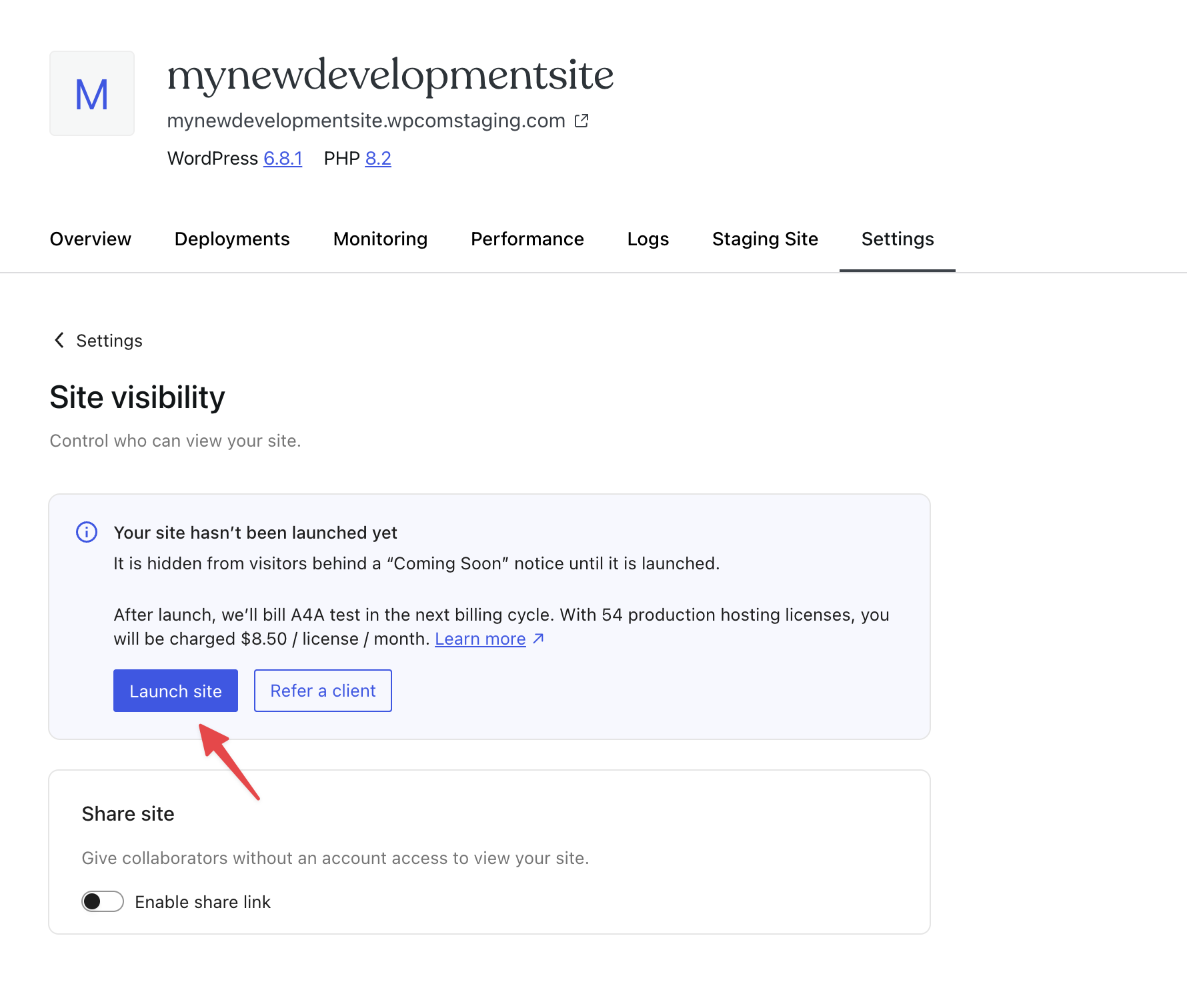
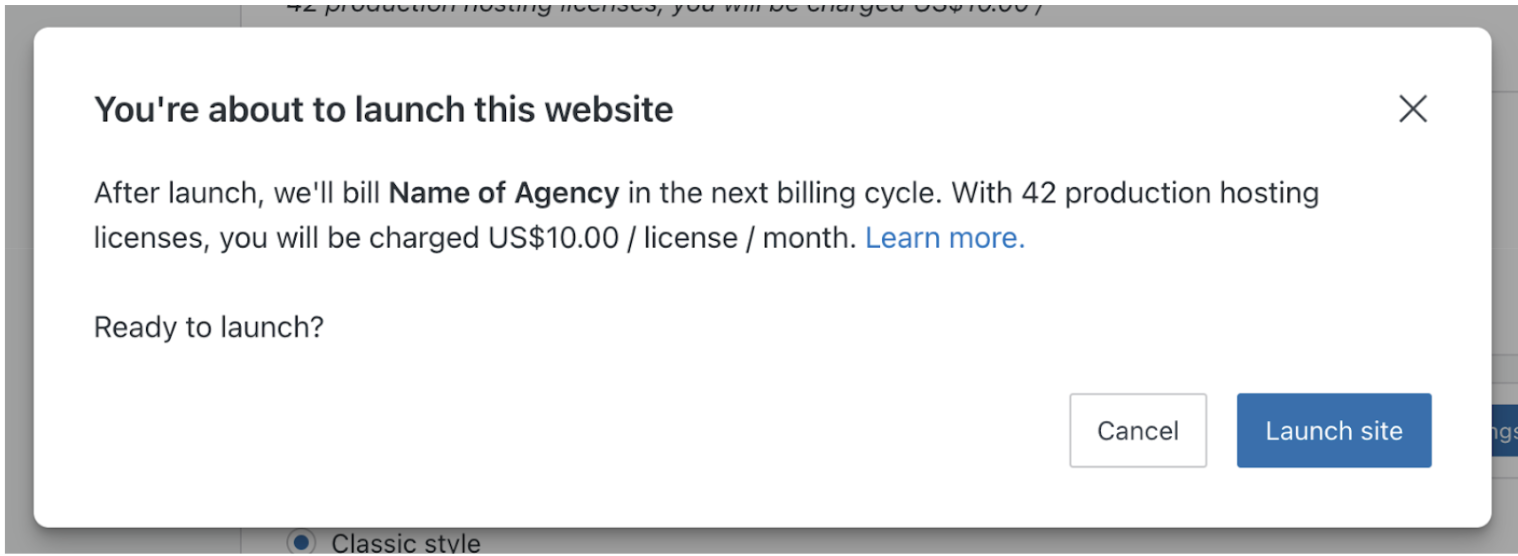
Once the site is launched, you’ll see a launch notification on the page and a new section “Agency settings” will become available, where you can configure the “white label” experience for your clients.


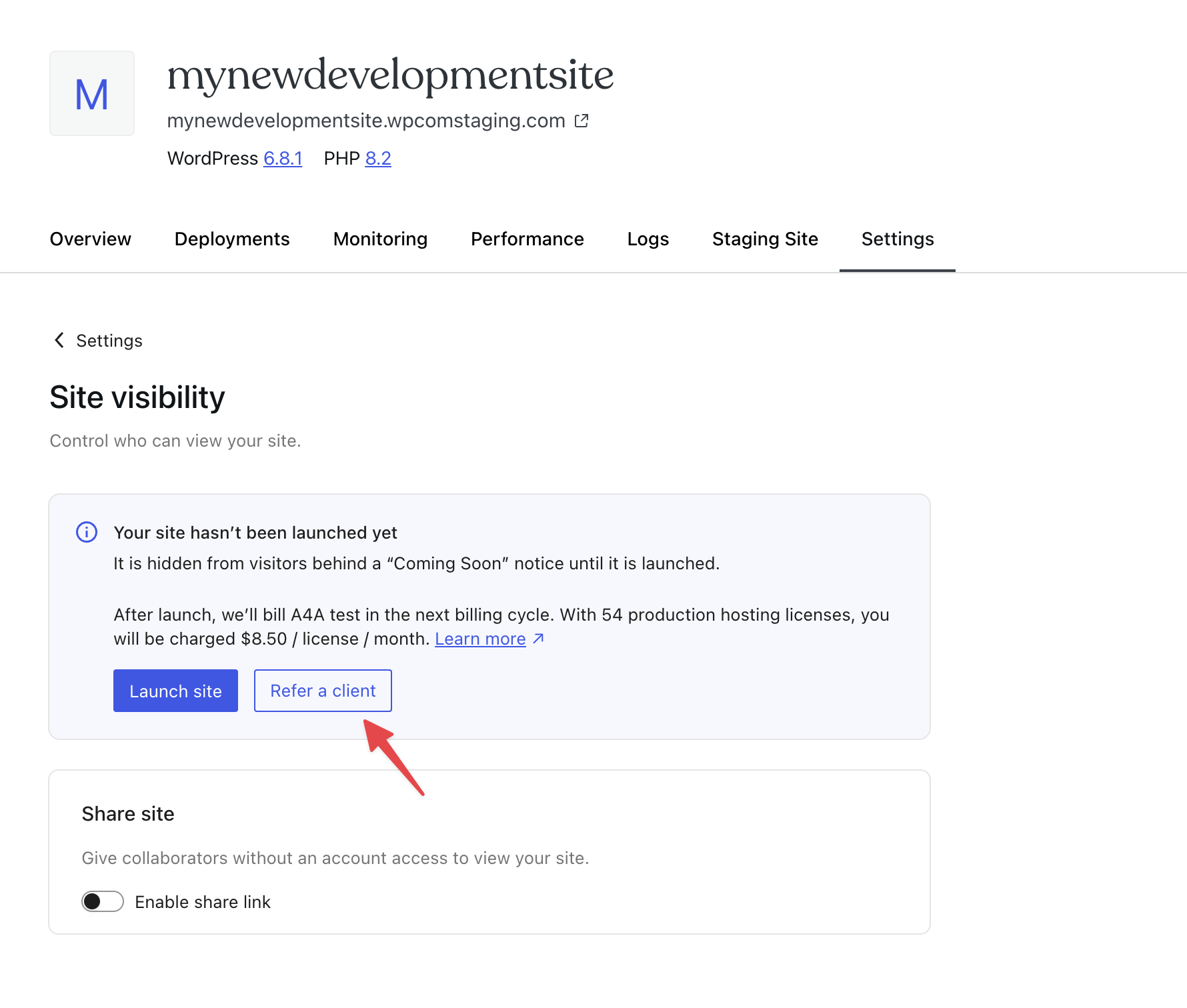
When a site is referred to a client, the client will pay the subscription and your agency will receive a monthly referral commission from it. You must first complete the initial setup for receiving commissions before you can send a client referral.
To send the referral, click “Refer to client”, then follow the instructions for referring products to customers.
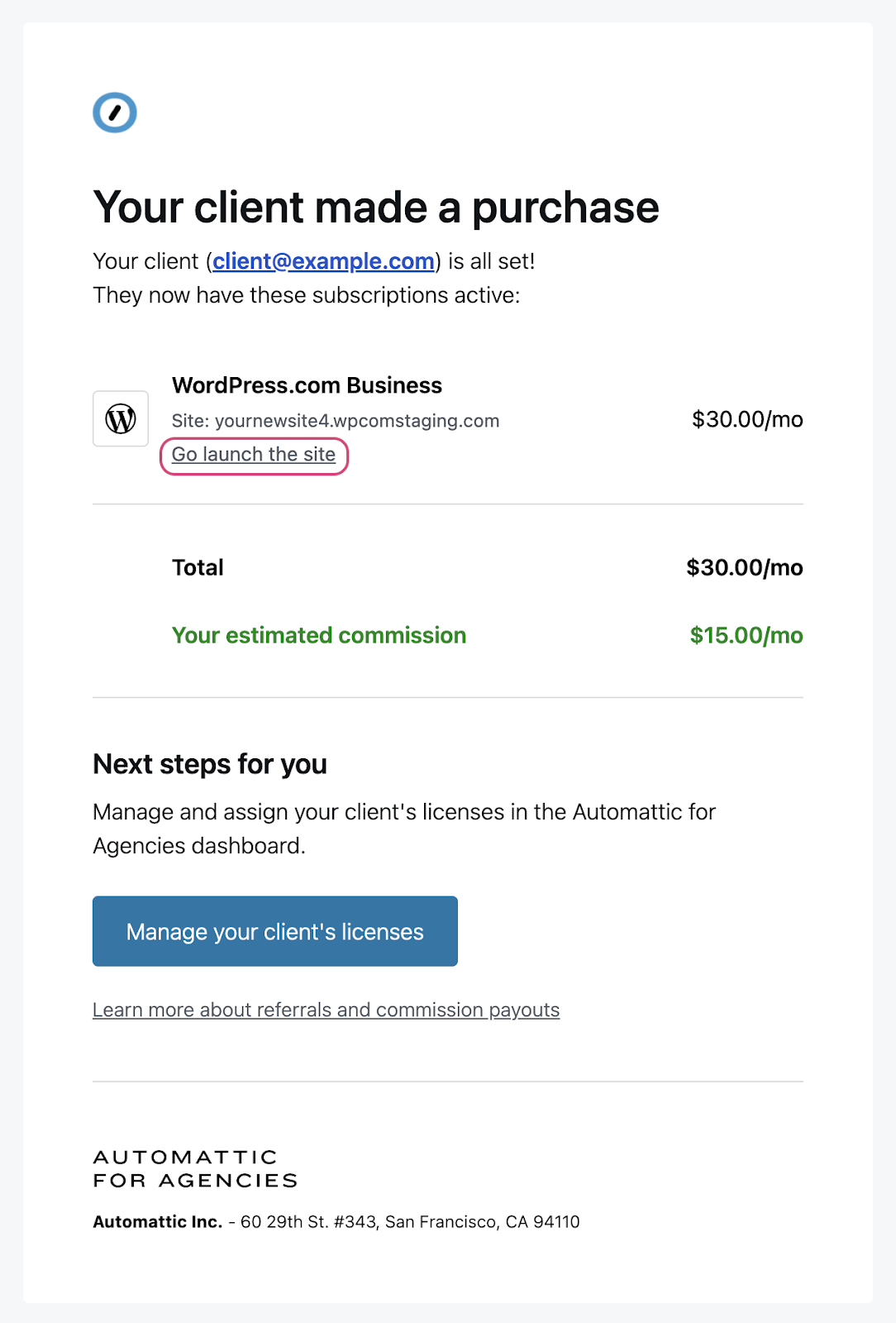
Once your customer has completed the payment, you’ll receive an email informing you of the purchase. At this point, your client’s site has been transferred to a production WordPress.com hosting license, but it has not yet been launched to the public. Click “Go launch the site” in the email to get to Site Settings for launching the site.
Each agency can use up to 5 free development licenses at a time. If all of them have been used, a license must be released before another site can be created for free. To release a free development license, you can either launch a development site or revoke a development license following the steps for canceling a WordPress.com hosting product.
 Automattic for Agencies - Knowledge Base