
A fast-loading site is essential for a smooth visitor experience and higher search engine rankings. In this guide, you will learn how to run a performance report and act on recommendations to improve your site’s speed.
📌
This feature is available on sites with the WordPress.com Business and Commerce plans, and the legacy Pro plan.
To test the speed of your WordPress.com site, follow these steps:
- Visit your Sites list in the dashboard.
- Click the site you want to check.
- Click the “Performance” tab to run the tests, which take approximately 30 seconds.
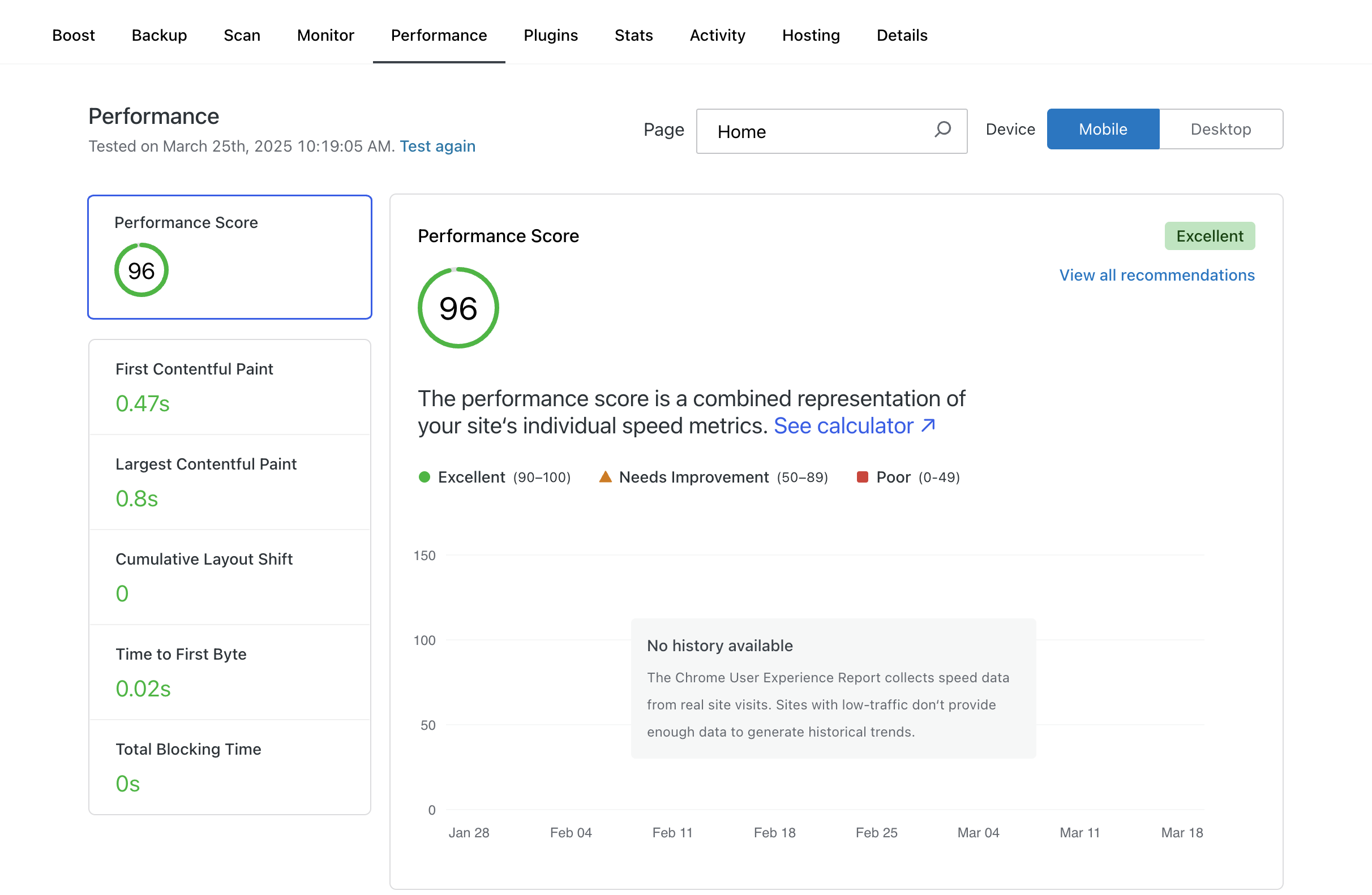
By default, your site’s homepage will be tested. To test other pages, click on the “Page” option to select from other public pages on your site.
💡
Test the performance of any website by visiting https://wordpress.com/speed-test/
Your site receives a performance score using Lighthouse, an automated tool from Google for assessing web page quality. The performance score is a combined representation of your site’s individual speed metrics, which include the following:
- First contentful paint (FCP): The time it takes for the first piece of content (such as text or images) to appear on screen after someone visits your site. The best sites have an FCP under 1.8 seconds.
- Largest contentful paint (LCP): The time it takes for the largest piece of visible content, such as a large image or heading, to fully appear on screen. The best sites have an LCP under 2.5 seconds.
- Cumulative layout shift (CLS): How much your site’s layout moves around while loading, which can cause elements like buttons or text to shift unexpectedly. The best sites have a CLS score of 0.1 or lower.
- Time to first byte (TTFB): How quickly your site starts to respond after someone requests it, showing the first sign that it is loading. The best sites have a TTFB of around 800 milliseconds or fewer.
- Total blocking time (TBT): How long your site is unresponsive while loading, meaning visitors cannot interact with it during this time. The best sites have a TBT under 200 milliseconds.
Your site receives separate performance scores for mobile and desktop. Click the “Mobile” and “Desktop” buttons to view your site’s performance scores and recommendations on each device.
After testing your site’s performance, you receive recommendations for improving your site based on your performance score:
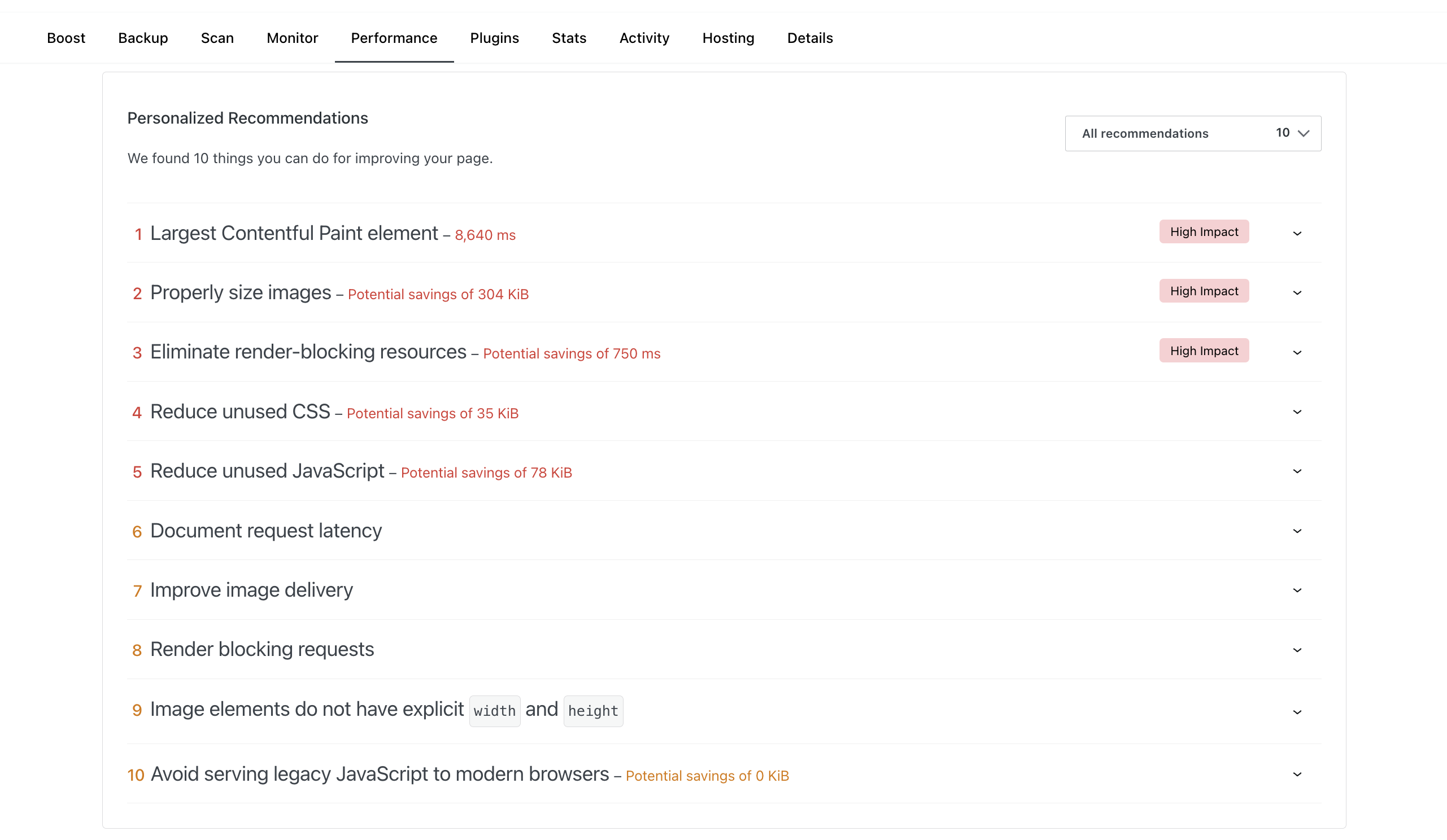
Click a recommendation to read an explanation of the problem, suggested solutions, and a list of URLs affected by that performance issue (which could include image URLs or files). These recommendations are tailored to your site so you can take action to improve performance.
Visit the guides below to learn how to solve the most common issues that may affect a site’s performance:
For more information about how WordPress.com automatically optimizes your website for speed, visit our guide to Improve Your Website’s Speed and Performance. For developers, visit our Troubleshoot Site Performance guide for more technical information to resolve performance issues.
 Automattic for Agencies - Knowledge Base