
July 23, 2025
We’re upgrading to a unified, modern billing system to make agency purchases and client referrals smoother, faster, and more global. This change brings up-front payments, monthly and annual billing options, support for 26+ currencies, and more ways to pay—helping your agency save time, reduce admin, and scale with confidence. The rollout will happen in three phases between August 2025 and March 2026, with full support and clear guidance every step of the way.
We bill by day rather than month to provide you with as much flexibility as possible. Because we only bill for the days a license or bundle was active over the course of a month, you’re able to issue and revoke licenses or cancel bundles whenever you need to. You are only ever charged for the time that a license or bundle is active. An active license is any license you have added to your Automattic for Agencies account, regardless of whether it has been assigned to a site or not.
We bill your payment method at the beginning of the following month for any licenses active in a given month.
If you cancel (revoke) any product mid-subscription period, you will be billed a prorated amount that month. Example: If you cancel a product on July 10, when you’re billed on August 1st, it will only be for the 10 days in July the product was active.
Conversely, if you purchase a product on July 25, when you receive your bill on August 1st, you’ll only be billed for the 7 days it was active in July.
You will receive an emailed copy of your invoice at the end of each billing period. You can also view invoices from Purchases > Invoices on your dashboard.
We show a count of days on your monthly invoice because we use days as the unit of measurement when calculating your monthly bill. Our payment partner, Stripe, generates your monthly invoice according to how many active licenses have been issued from your account and how many days each has been active in the month.
If for some reason payment is not able to be processed on the first attempt, we send reminder emails. In this situation, you may also manually pay an invoice from the Purchases > Invoices section of your dashboard.
When verifying your Automattic for Agencies purchases on your credit card statement, look for the descriptor “AUTOMATTIC”. Other charges purchased from the Automattic ecosystem could be prefixed with one of the following descriptors depending on the purchase was made:
- WPCHRG.COM
- WordPress
- Akismet
- dotBlog
- Jetpack
- Crowdsignal
- VaultPres
- WooCommer
- WP VIP
If you don’t recognize a charge or need assistance identifying a transaction, you can reference your emailed invoice or view your complete billing history in the Purchases > Invoices section of your dashboard. Having this information readily available can help prevent unnecessary chargebacks and account complications.
We bill for all licenses that have been purchased from your Automattic for Agencies account at the time they are issued, even if they haven’t been assigned yet. When you purchase a product, a new license is generated by our systems and is considered active from the moment it was issued, even if it has not been assigned. Billing stops for a given license when it is revoked/canceled.
Although billing is automatic, if a payment method is removed or a payment is declined, then an invoice may enter an unpaid state. If this is the case, Automattic for Agencies will send several email reminders. Failure to make payment and bring an account into good standing will result in restrictions on the account. If an invoice is not paid after 28 days from the invoice issue date, Automattic will revoke all licenses associated with the agency account.
You may cancel products at any time by navigating to:
- Purchases → Licenses.
- Search or browse for the product(s) you wish to cancel.
- Expand the row, using the down chevron at the end of the row.
- Click Revoke.
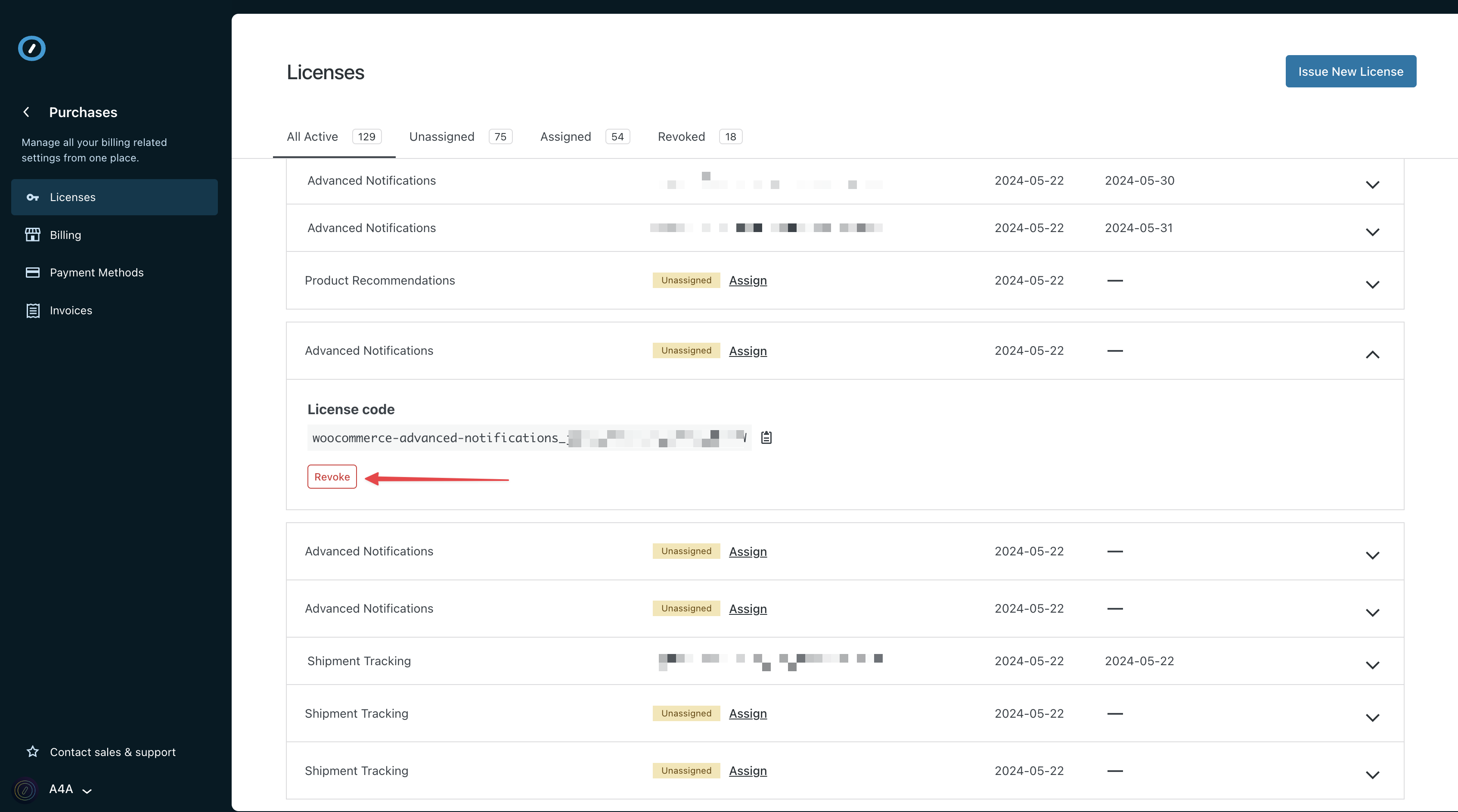
- You’ll be asked to confirm. Click Revoke License.
- Once confirmed, your license will be canceled forever and you will cease being billed for that product immediately.
- To see all licenses that have been canceled, visit the “Revoked” tab under Purchases → Licenses.

- Navigate to Purchases → Payment Methods.
- Click Add new card.
- Enter your credit card details and click Save payment method.
- If you have no current payment methods on file, this will be used as a primary payment method. All invoices will be charged to this card.
- If you do have a payment method on file, you can uncheck Set as primary payment method if you do not wish it to be used as the default payment method on your account.
- The payment method that you have stored as your primary payment method will be charged automatically each month for all of your active product licenses.
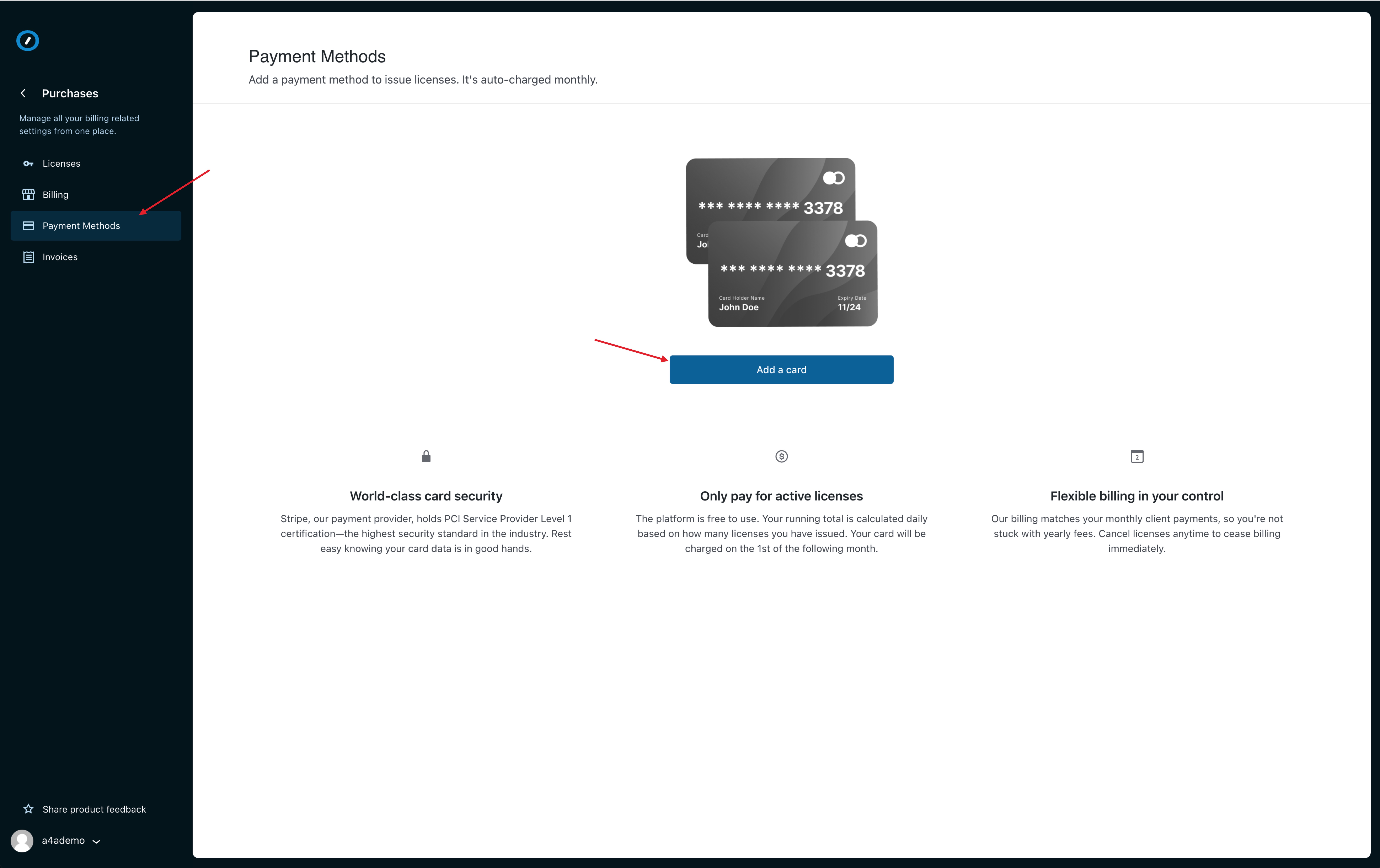
Please note: the card you add in this step will be used for the current purchase, as well as for any subsequent purchase, including renewals.
- Navigate to Purchases → Payment Methods.
- Click on Add new card at the top right, the fill in the details as mentioned above

In adding a new card, you will have the possibility to choose to make this new payment method primary.
- Navigate to Purchases → Payment Methods.
- On the payment method you want to remove, click the three dot menu and then click Delete.
- If you delete a payment method, and you have another on file, you will be asked to confirm that you understand that your secondary payment method will now become the primary payment method and will be charged automatically each month for all of your active product licenses.
If you do not have a payment method on file, you will not be able to purchase new products from Automattic for Agencies until you add a new payment method to your account.
If you remove all saved payment methods before being charged for the month, you will need to pay any past-due invoices before you can assign new licenses.
In the event there are issues with your payment method(s), you will be notified in advance to fix them before your subscription(s) lapse:
- If a payment method is missing, or card will be expired before the renewal date, we’ll let you know in advance:
- Monthly subscriptions: 14 and 7 days before subscription renewal, respectively.
- Yearly subscriptions: 30 and 7 days before subscription renewal, respectively.
- If we encounter any unforeseen issues during the actual subscription renewal, you’ll also be notified and given a short grace period to remedy. If you have problems or concerns, please reach out to us immediately, and we’ll work with you to ensure no disruption to your subscriptions.
 Automattic for Agencies - Knowledge Base