
These settings enable you to configure crucial settings like the site address, PHP version, and primary data center for your new WordPress.com site. These options are only available at the site creation step (at this time, you are not able to modify these once the site is created). You are also able to show/hide hosting features and WordPress.com help center (required for white labeling the solution).
Click on Sites > Needs Setup. and select Create New Site:

In the window that appears, choose the options that best fit your needs:
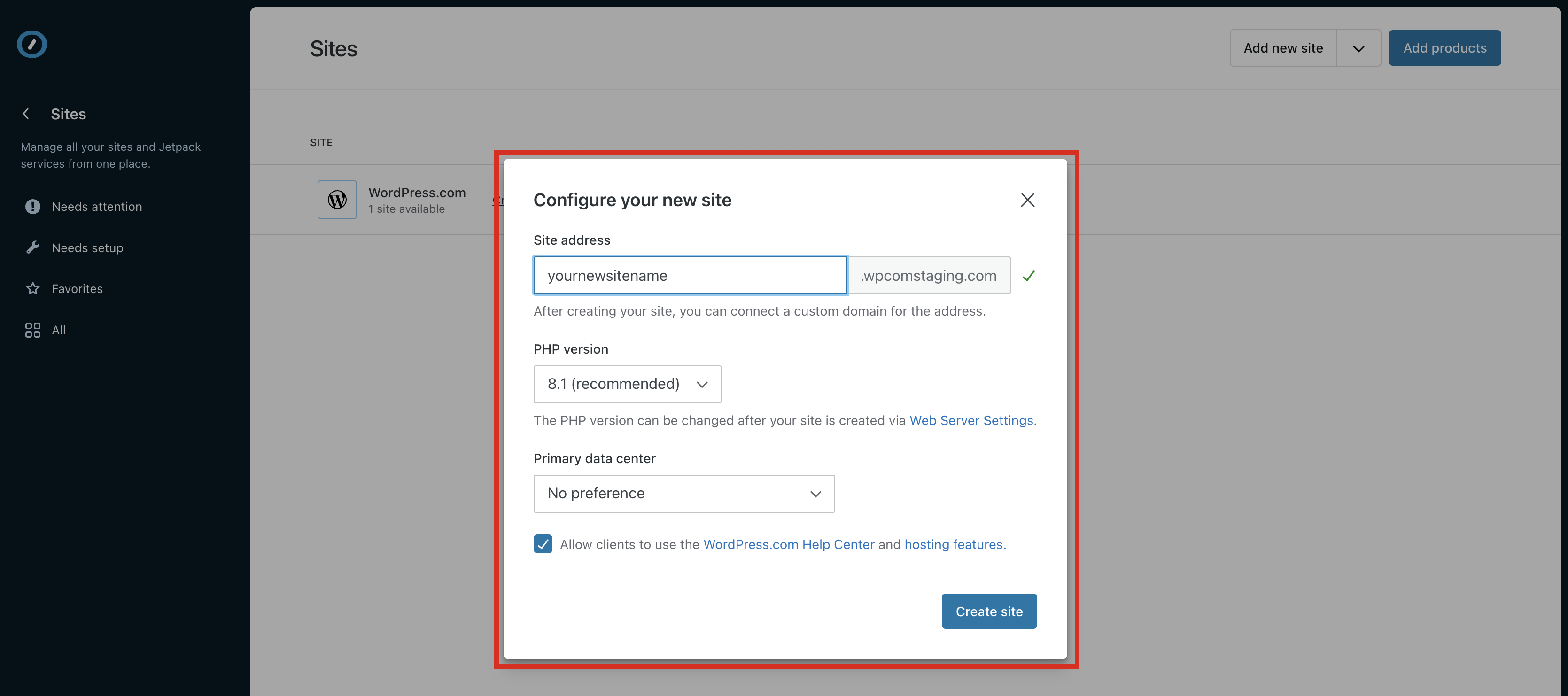
Specifically, you can adjust the following fields:

Site address: this is a placeholder address for your site used until you connect a custom domain. It will be auto generated by default, but you can edit it so you can easily identify the site while it’s in development.
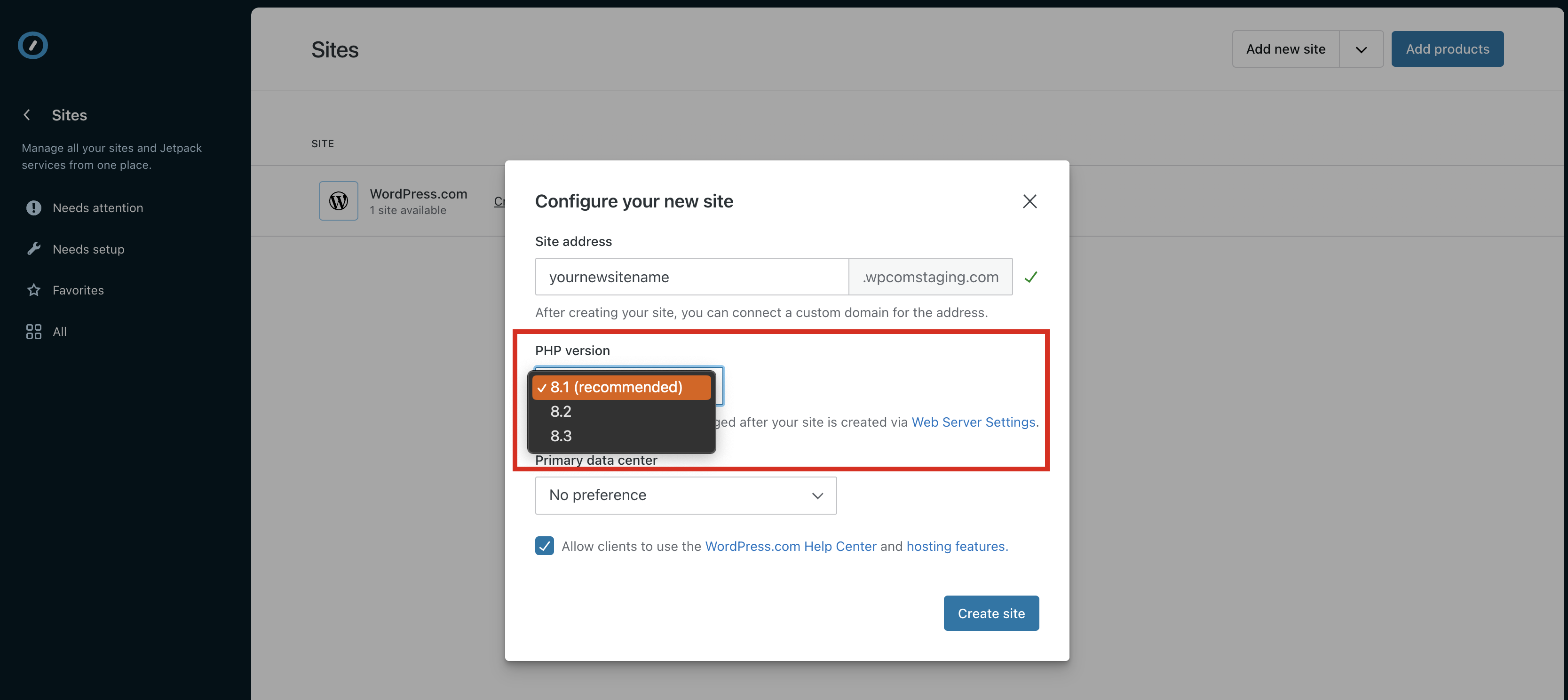
PHP version: the most recent version is pre-selected and marked as recommended. However, you’re able to pick the version that suits you best from the dropdown menu.

Data center: You can select the primary data center that is used for your site. This is assigned automatically, but if you prefer to opt for a specific data center, your options are:
- US West
- US East
- US Central
- EU West
Choose whether client should have access to WordPress.com support & hosting/plan settings from wp-admin

By default, WordPress.com includes a ‘Hosting’ section on the wp-admin dashboard. The hosting section contains plan information, upgrades, and other similar options. There is also a Help Center in the admin bar through which our support team can be contacted.
We understand that many agencies want to have control over their client’s access to our support team and plan features in order to provide a more white label type experience. This control allows you to determine access to the ‘Hosting’ section and Help Center from within wp-admin on a specific site.
- Leaving ‘Allow clients to use the WordPress.com Help Center and hosting features’ checked means these features will be accessible through wp-admin for all users on the site.
- If you uncheck that option, any user on the site, including you, will no longer see the hosting section or have access to the WordPress.com Help Center in wp-admin on a specific site.
When these are turned off for a specific site, you and your clients will no longer have access to them from the site’s wp-admin.
This means that if you want to work on the site’s hosting specific settings, create staging sites, schedule plugin updates, add email, or manage domain, you’ll want to access those options from outside wp-admin on the site itself. The best way to do this is to use the Automattic for Agencies dashboard to directly access your site’s hosting configuration, domain settings, or site settings.

The option to enable or disable the client’s experience can be changed at a later time via Site Settings of your WordPress.com site.
- From the Automattic for Agencies dashboard, open the actions menu for the site you want to manage and click “Site Settings”.
- The toggle for configuring the white label experience can be found under “Agency Settings”.

 Automattic for Agencies - Knowledge Base