
This guide explains how agencies can buy hosting using bulk discounts from Automattic for Agencies. If you wish to refer a client to our hosting, you can follow our guide to making referrals.
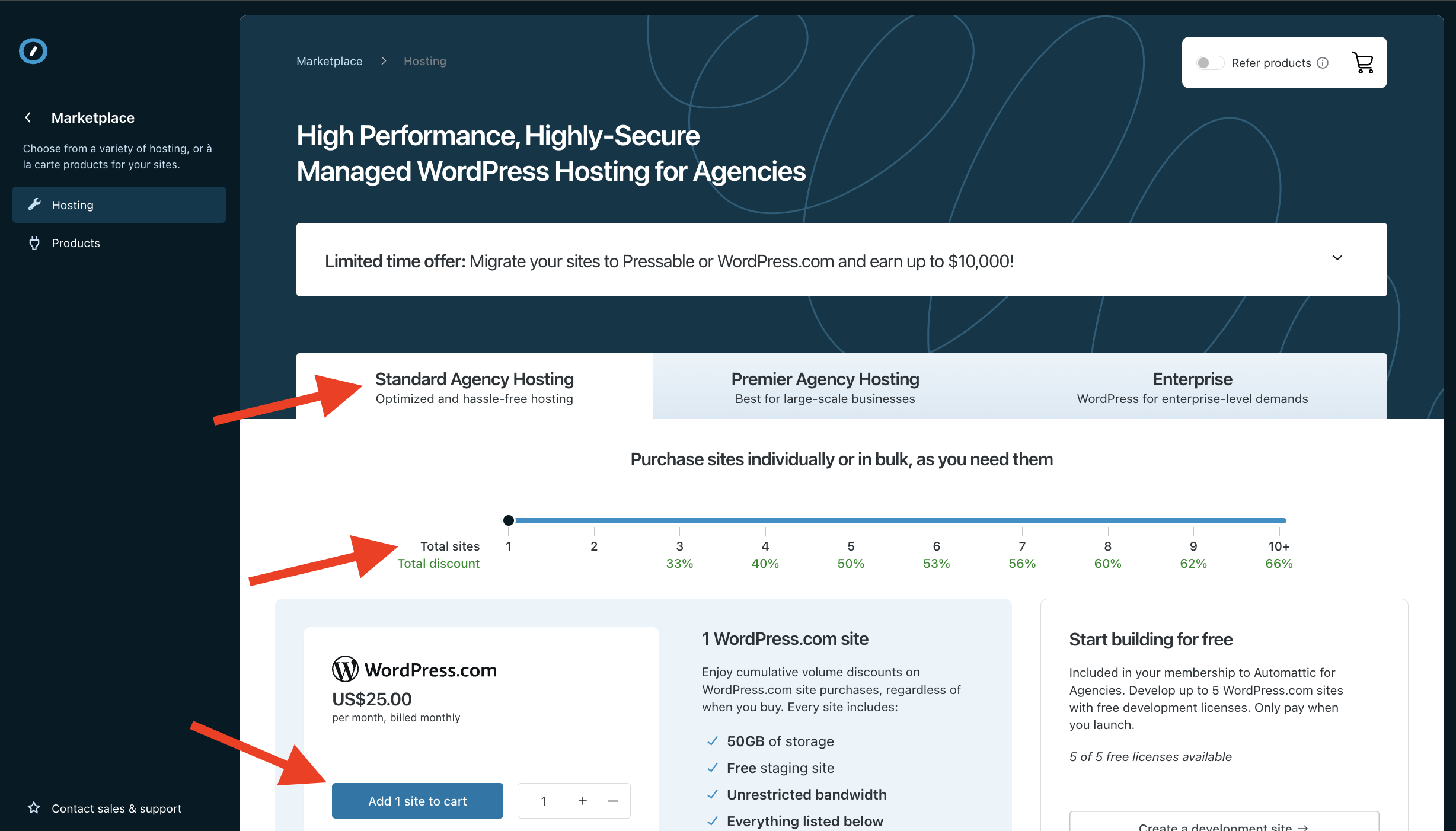
Automattic for Agencies offers bulk discounts on hosting from WordPress.com. This guide will help you purchase hosting from WordPress.com and set up a new site. When you buy WordPress.com hosting through Automattic for Agencies, you pay per site and the price goes down for each additional site you add, up to a maximum discount when you own ten or more sites. Discounts apply whether you purchase one license at a time or if you buy multiple licenses at once.
The WordPress.com site license bought through Automattic for Agencies is the same as the WordPress.com Business plan, including backups, 50GB of storage, unlimited traffic, and more.
- To get started with WordPress.com hosting, navigate to the Marketplace > Hosting page on the Automattic for Agencies dashboard and choose the ‘Standard Agency Hosting’ tab.
- Choose the number of site licenses you wish to purchase using the slider or by typing the number of sites you wish to purchase, and click ‘Add Site(s) to Cart’
- Click the cart icon in the top right to reach the checkout, and complete your purchase. If you do not have a payment card on file, you’ll be prompted to add one at this point.
Note: you will not be charged immediately for this purchase. We issue an invoice on the 1st of each month for your usage during the prior month. This is when you are charged. WordPress.com site licenses are counted for billing purposes as soon as the purchase is completed, even if a site is not created from a license.
Once you complete the purchase, you’re able to create a new site using the license(s) issued. To create a new site:
- Navigate to Sites and choose ‘Needs Setup’ from the left sidebar.
- You’ll see the license(s) you have available.
- Click ‘Create New Site’ to create a new site from an available license.
- You’ll be shown options to customize your new site. Those are described in more detail in our guide to configuring a new WordPress.com site.
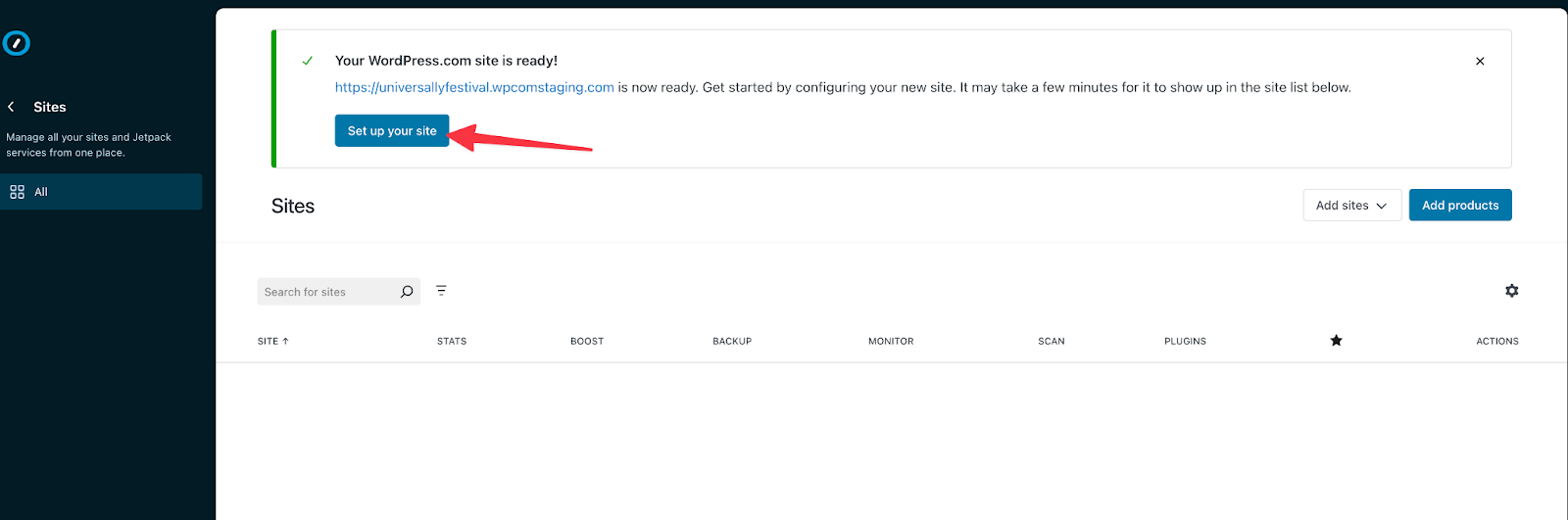
- Once created, your site will take a couple of minutes to show on the Automattic for Agencies Sites page. While waiting for the site to appear, you can start working on it immediately by clicking the message shown below.
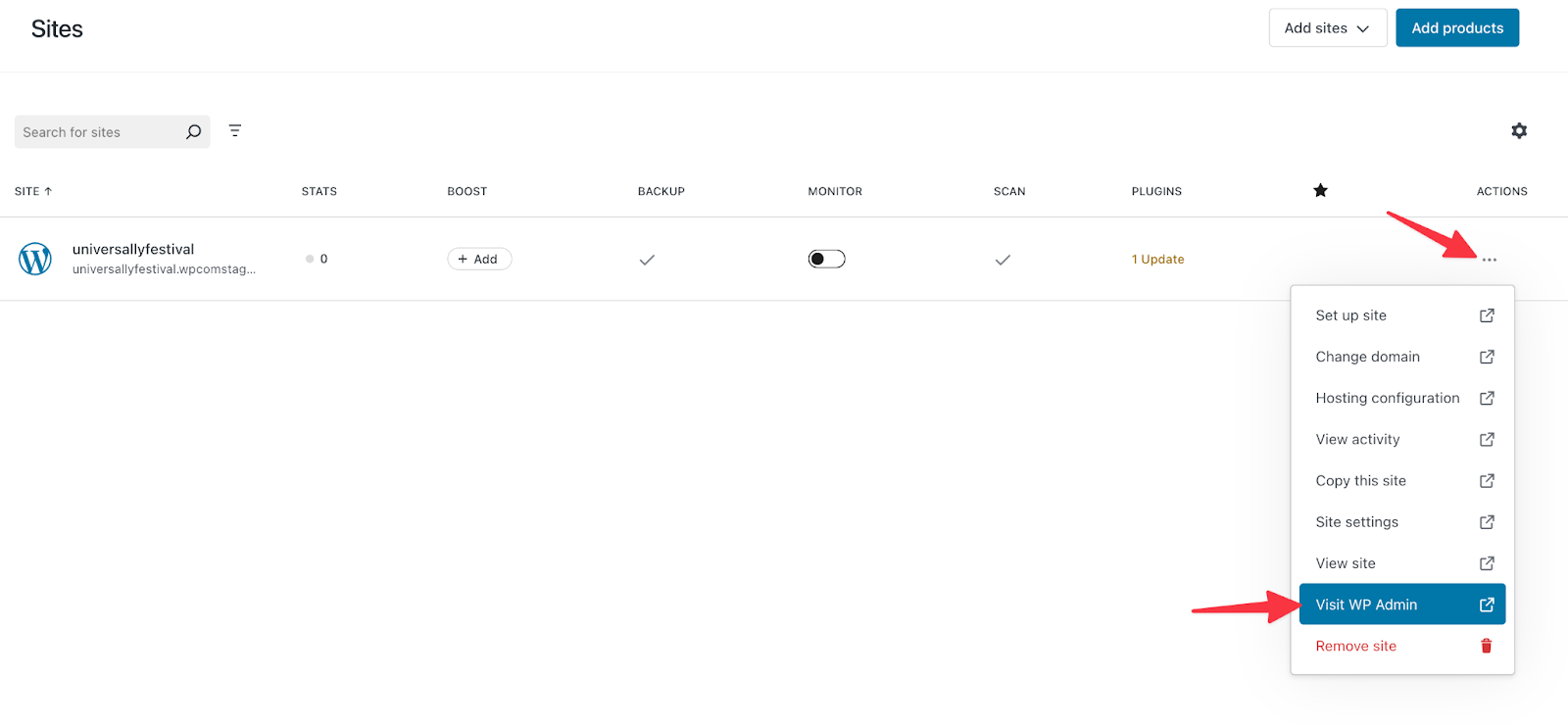
- Once the site appears in your sites list, you’ll be able to work on it via the normal wp-admin interface by clicking through from your Automattic for Agencies dashboard.
WordPress.com maintains full support guides to building with and using WordPress.com features. Those are available at https://WordPress.com/support and https://developer.wordpress.com.
 Automattic for Agencies - Knowledge Base