
In the Automattic for Agencies dashboard, you can now generate professional reports for your clients featuring key website metrics.
This tool helps you demonstrate your impact through polished, easy-to-read reports that keep your clients informed and confident in your work.
You can create and manage your reports from the Reports section on the sidebar of your agency dashboard.
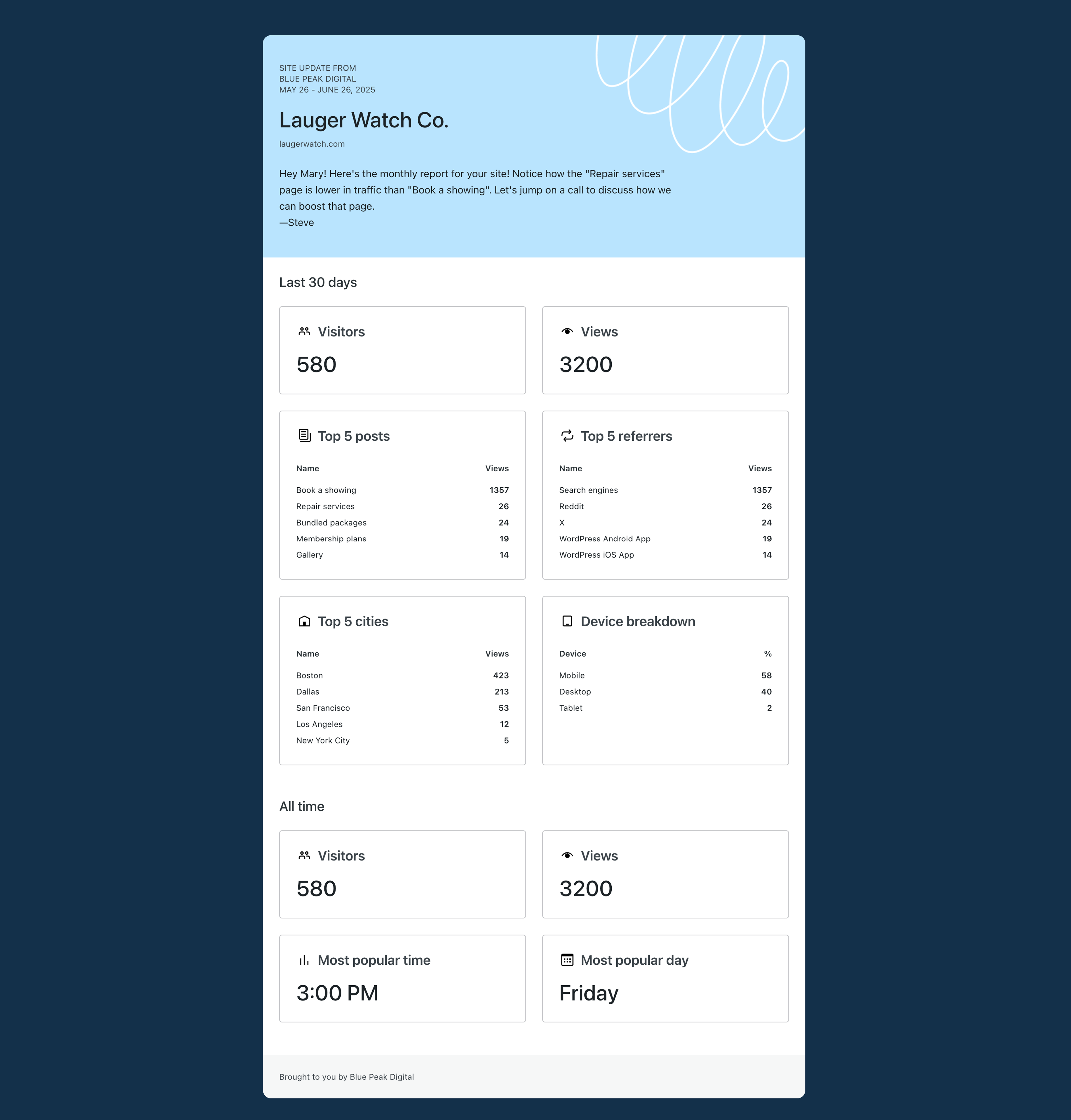
Once you visit the page, you can view an example report to preview how the report would look from your client’s perspective.
Go to the Automattic for Agencies Dashboard > Reports.

- Click on the “Build a new report” button to start the process.
- Choose the site you want to report on. If you are not seeing the site, you need to first connect it using the methods in the Site Dashboard. How to article here: Adding existing sites to the sites dashboard
- Note: At the moment, the reporting features support only live WordPress.com or Pressable sites with Jetpack.
- Select the report date range. You can also select a custom range.
- Add your client’s email address.
- If you wish to send a copy to your agency team members, select the checkbox “Also send to your team.”
- Enter the email addresses of your team members separated by a comma.

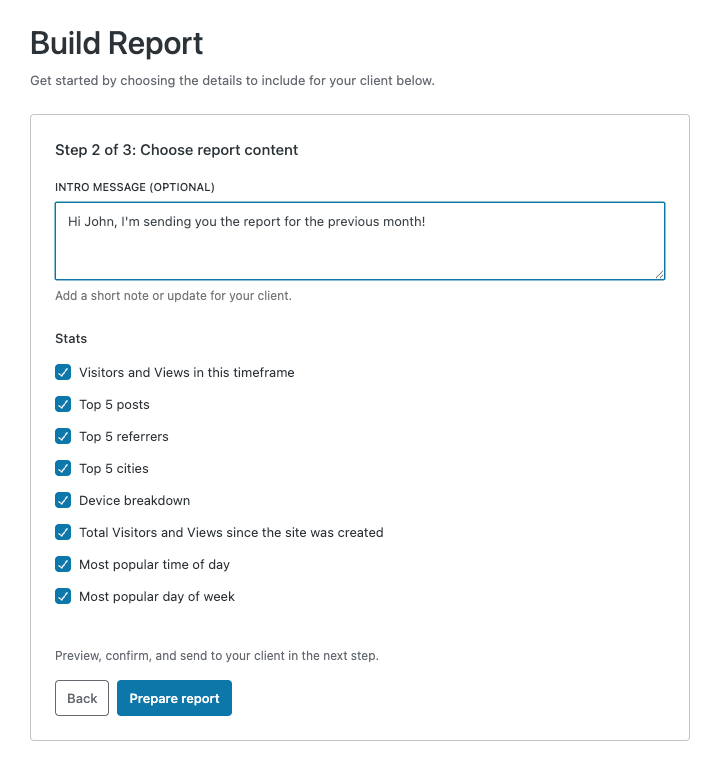
- Enter an optional message for your client.
- Select the data points you wish to include under the Stats section by marking the checkboxes.
- Click on the Prepare Report button to move on to the next step.
- Note: The report will not be sent out yet, and you will be able to preview it at Step 3.
You will see a loading screen while the system prepares your report. Depending on the volume of data included in the date range you selected, it might take a few minutes.

Once your report is ready, you will see the option to send a preview. If you are ready to send the report, click on the “Send to client now” button.

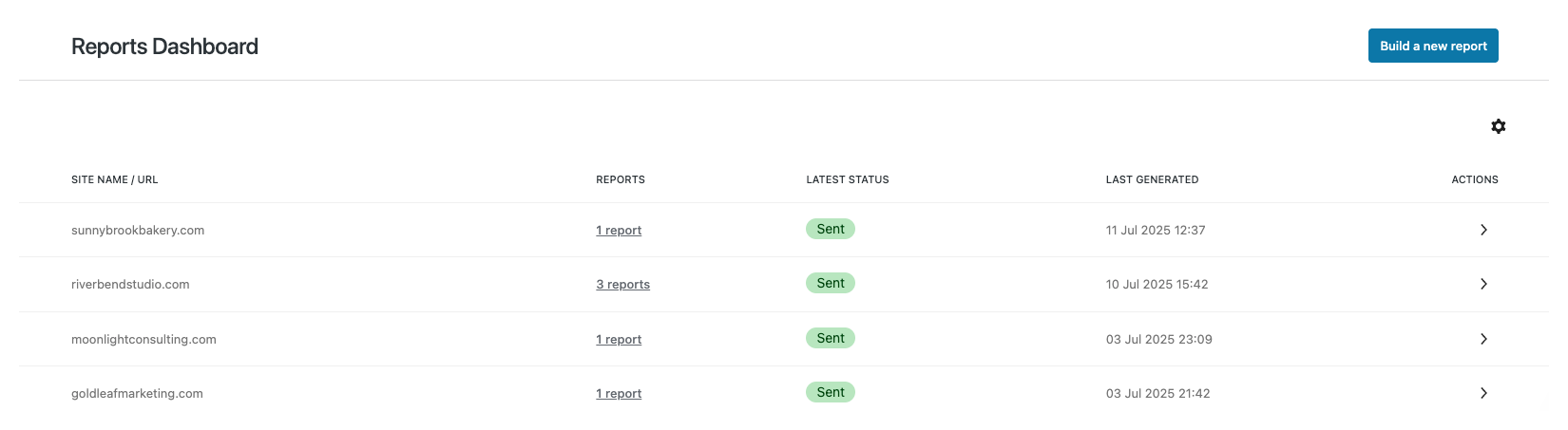
To view all of your created reports, visit the Reports Dashboard. It provides a centralized view of all your client reports, organized by site with, the latest reports displayed at the top. Each entry shows:
- Site URL
- Number of reports generated
- Latest report status
- Date of last report generation
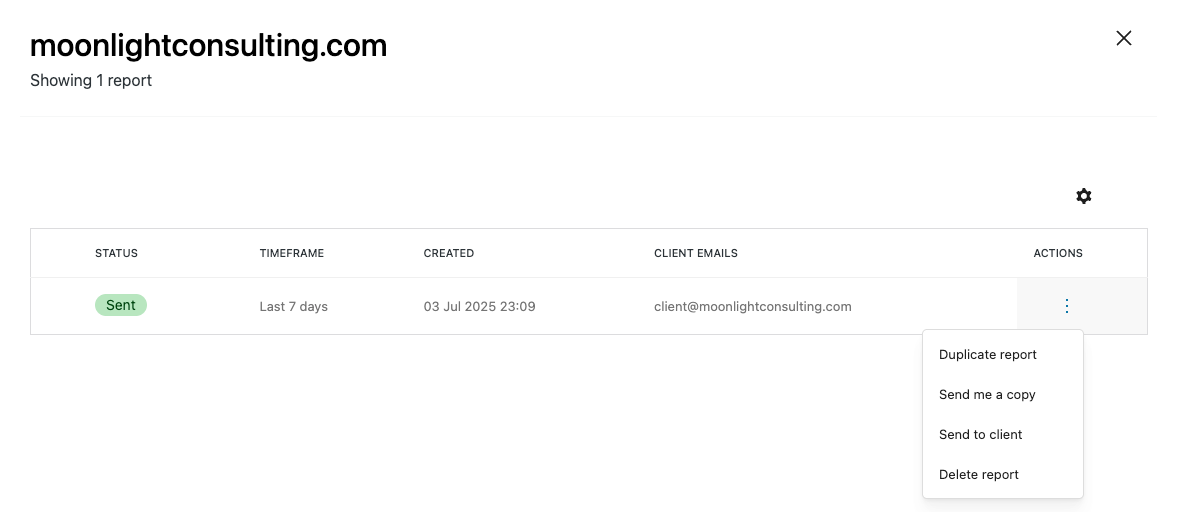
In the detailed view, you can see the complete list of reports sent to the selected site. Each report shows its status, timeframe, creation date, and available actions.
For each report, you can:
- Duplicate Report: Create a new report with pre-filled values from an existing report
- Send Me a Copy: Receive a copy of the report in your email
- Send to Client: Forward the report to your client’s email address
- Delete Report: Remove the report after a confirmation dialog
We will continue to improve the reporting feature as well as the rest of the product features in the Automattic for Agencies program. Please send us your feedback and connect with our team at partnerships@automattic.com
 Automattic for Agencies - Knowledge Base