
If you’re seeing this page, that means your web agency is using Automattic for Agencies to manage their clients’ websites.
Automattic is the company behind some of the biggest brands in WordPress, such as WordPress.com, WooCommerce, Jetpack, and Pressable.
As of March 2026, all users will be on our new billing system. The bottom of the article outlines our legacy billing system for posterity.
New billing (March 2026 onward)
- Receiving a request for payment
- Paying for products
- How subscriptions work
- How to cancel
- Payment methods
- Missing payment method
Legacy billing (prior to March 2026)
- Receiving a request for payment
- Paying for products
- How subscriptions work
- How to cancel
- Payment methods
- Missing payment method
As of March 2026, client billing through Automattic for Agencies is powered by WordPress.com, regardless of products and hosting that your agency is managing for you. This upgrade brings upfront payments, more currencies, and additional payment methods for a smoother billing experience.
When your agency adds products to your website or hosting to build your website, they’ll send you a referral via email. This referral will include:
- Any products or hosting for your website that your agency wishes to install and manage on your behalf
- The price of each product
- A link to complete your purchase
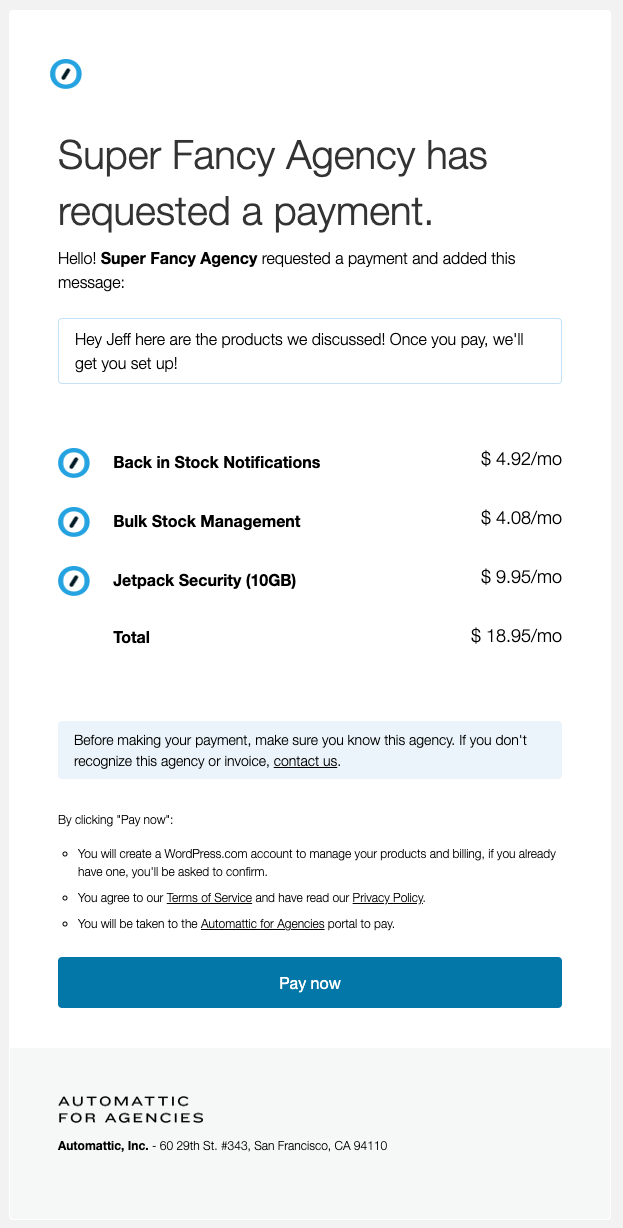
When you click “Pay now,” you’ll be taken to checkout to select a billing term, add a payment method, and confirm your purchase.
If you don’t have a WordPress.com account, one will be created for you during checkout. This account allows you to manage your payment methods, view your subscriptions, and cancel products at any time.
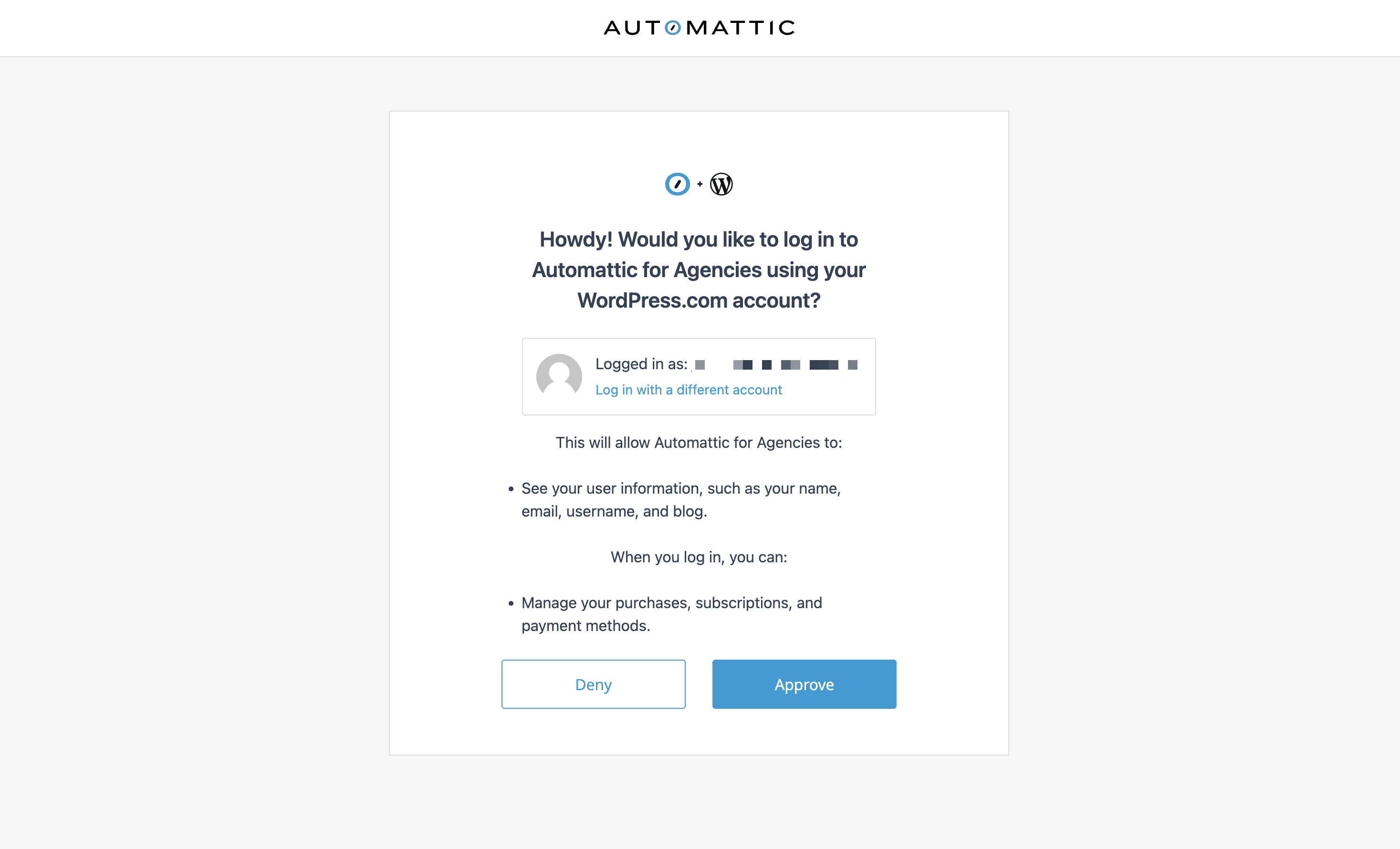
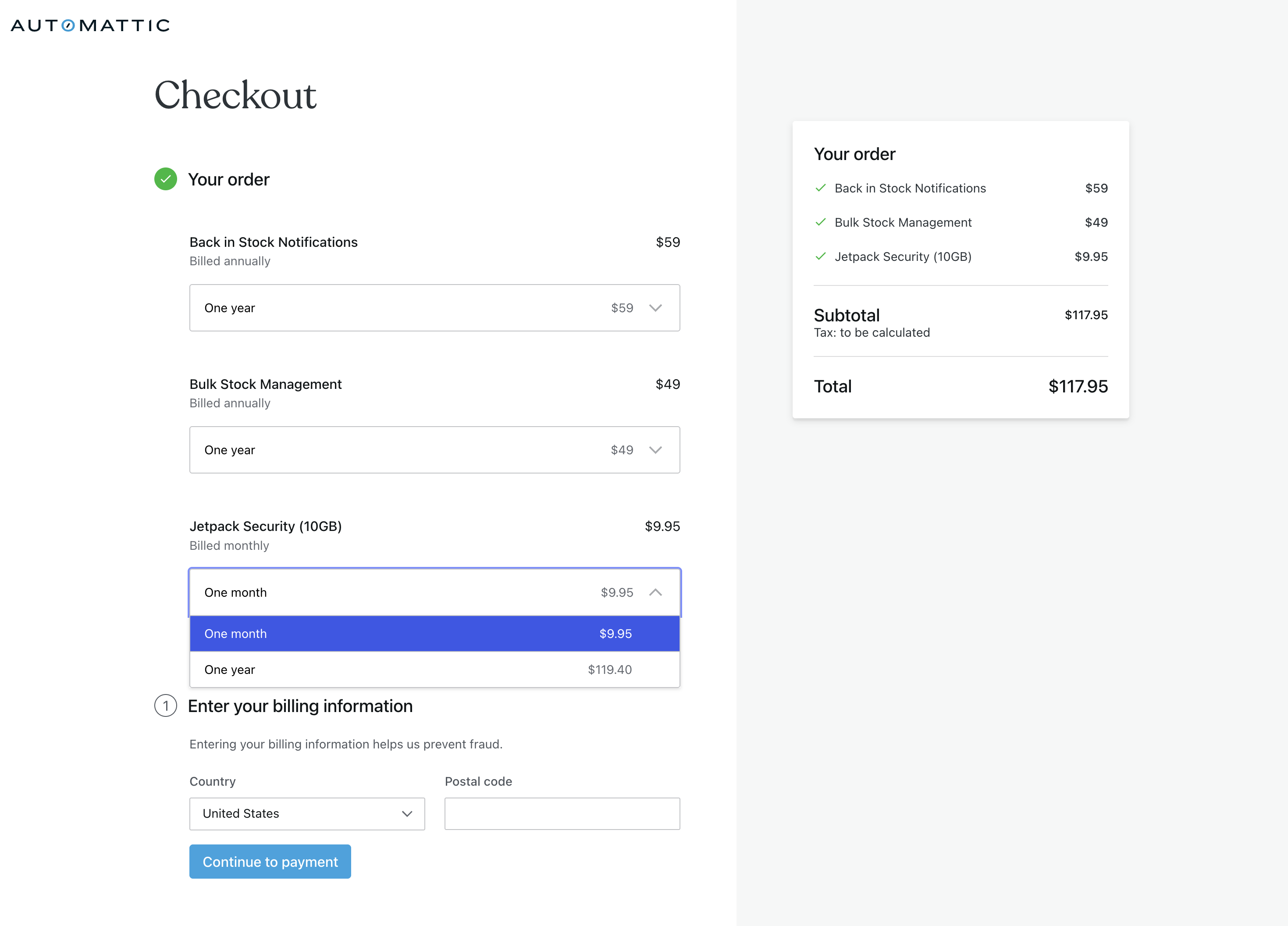
After logging in or creating your WordPress.com account, you’ll be brought to the checkout screen. Here you can review all the products or hosting your agency has sent over for you to purchase.
During checkout, you’ll be able to:
- Choose your billing term: Select monthly or annual billing for each product.
- Choose your currency: Pay in any of 26 supported currencies. No more exchange fees from USD.
- Choose your payment method: Credit cards, PayPal, iDEAL, and more are accepted.
Note: Currencies and payment methods are region and setting based. If you’re in the United States, you’ll see your products priced in USD with Credit Cards and PayPal as payment options. Conversely, if you’re in the Netherlands, you’ll see prices in Euro, and iDEAL as an added payment method.
Once your payment is confirmed, you’ll be brought to your product management screen where you can see that your products are now active.
You don’t need to do anything else. As soon as you complete the payment, your agency will receive a notification that the products you purchased are available for them to use. They’ll begin setting up the products and will follow up with you if anything else is needed.
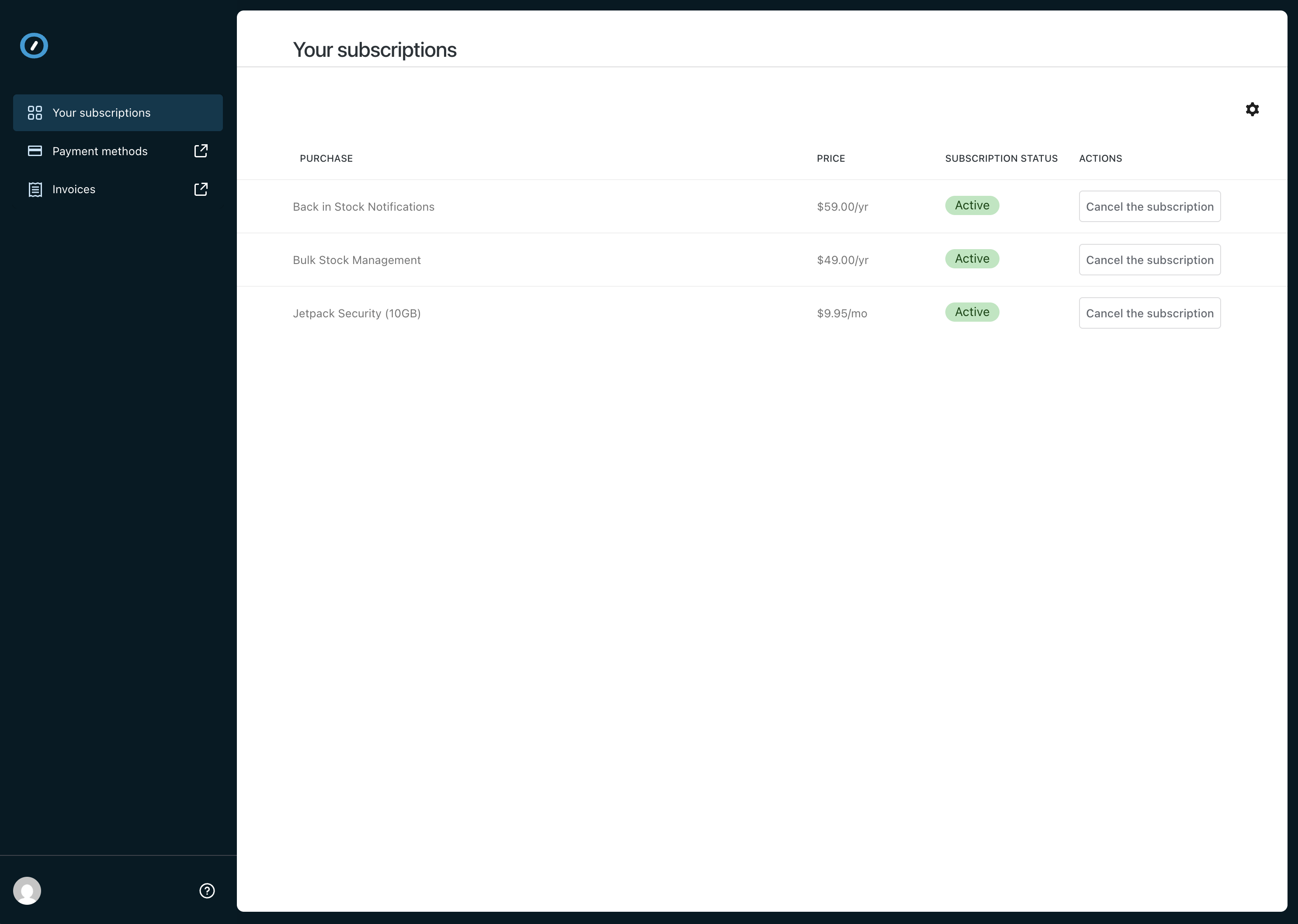
Your subscriptions will be managed from your client dashboard within Automattic for Agencies. Bookmark this page for future reference. If you prefer, you can also manage these purchases, view billing history, and adjust payment methods on your profile at WordPress.com
After purchase, you’ll also receive a receipt in your email with purchase details and links to manage your purchase.
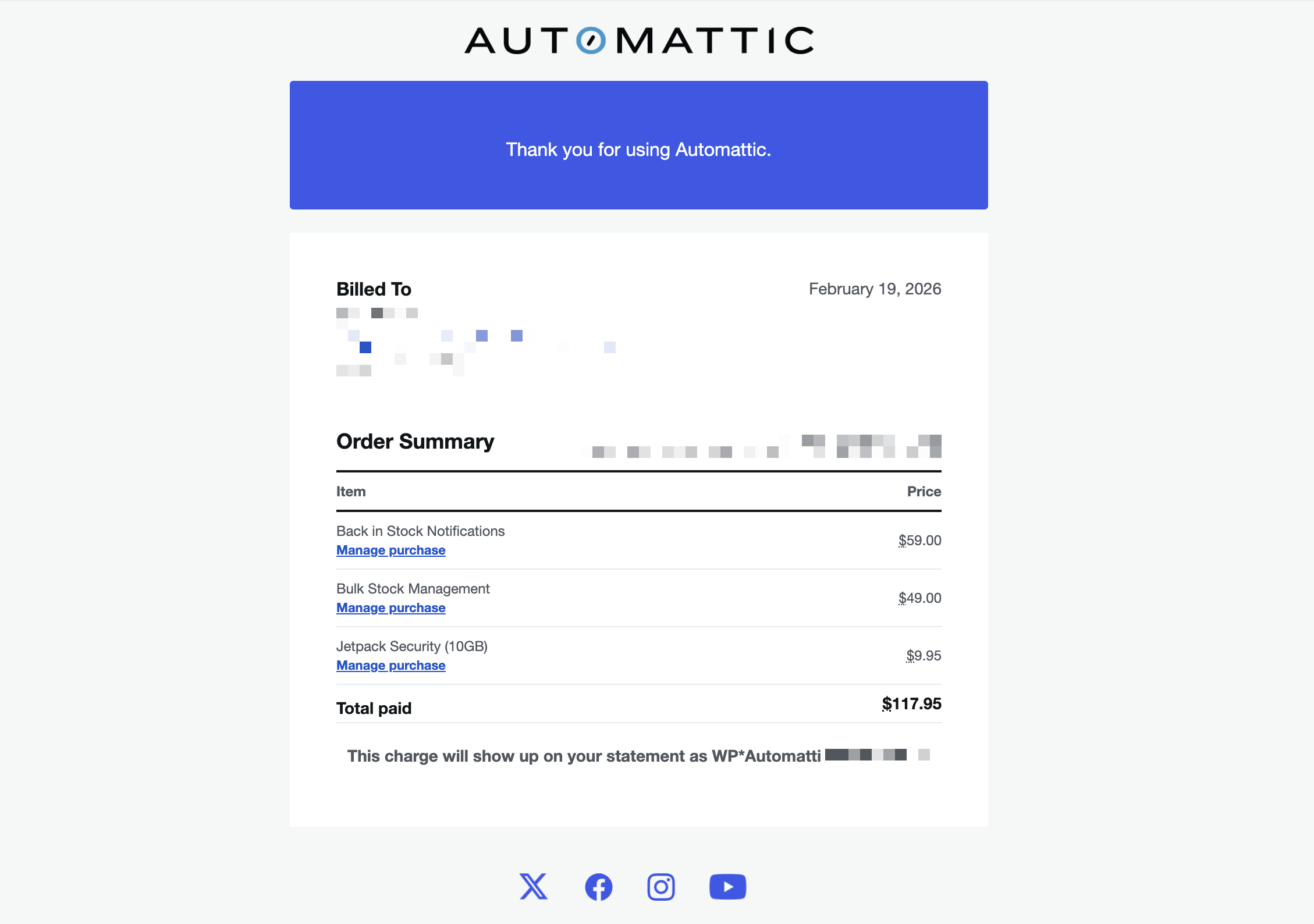
Subscriptions are billed upfront based on the billing term you selected at checkout (monthly or annual).
- Monthly subscriptions renew on the same date each month.
- Annual subscriptions renew on the same date each year.
You can cancel these products at any time
If you cancel a product, it will remain active until the end of your current billing period. For example, if you purchased a monthly subscription on March 10 and cancel on March 20, the product stays active until April 10.
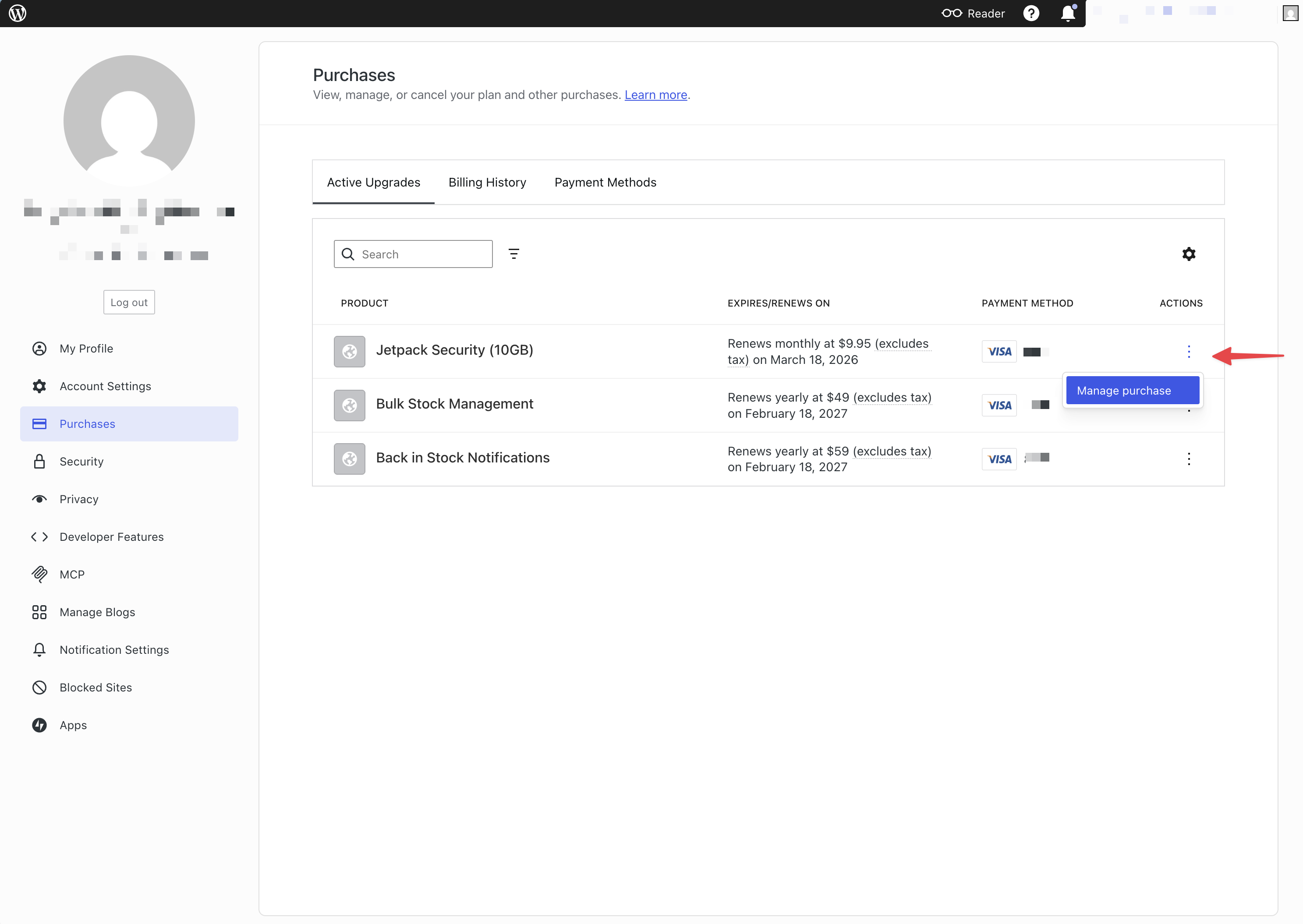
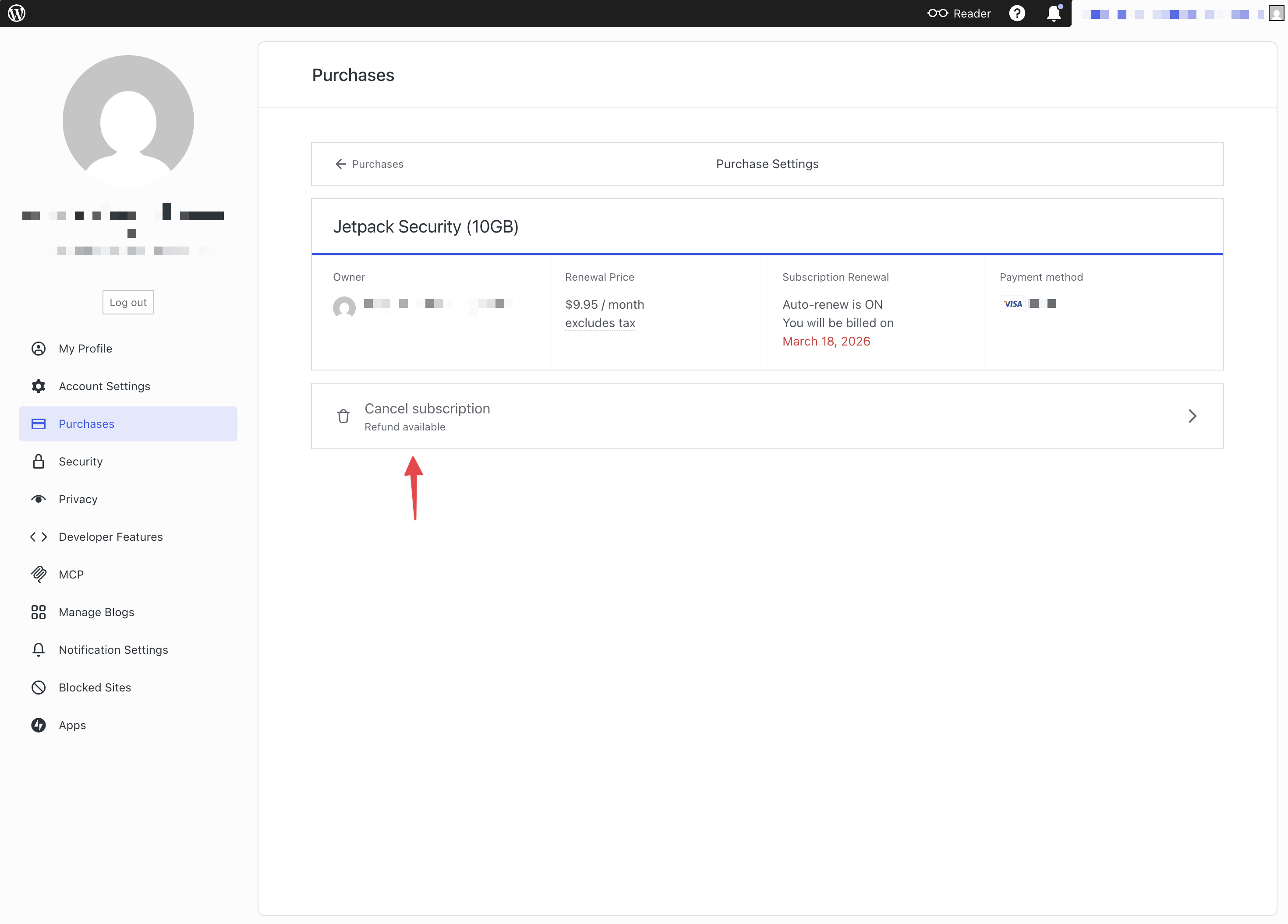
To cancel a product that you have previously paid for, navigate to your subscriptions area in your Automattic for Agencies dashboard OR from the purchases area under your WordPress.com profile.
Each product will display a “Cancel subscription” button. Once you click cancel, a dialog will display asking you to confirm.
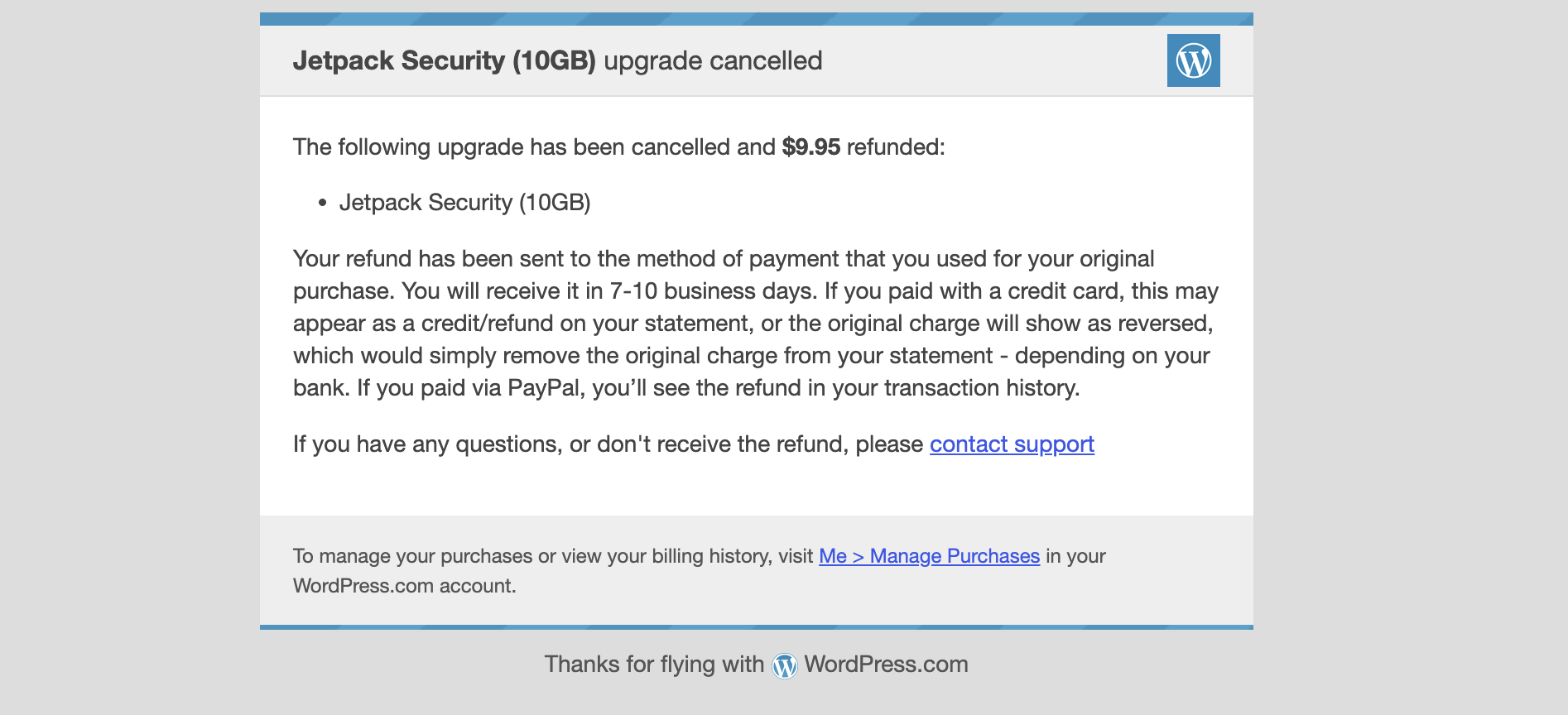
Upon cancellation, you’ll receive an email notification. If you’re within the refund window, this email will note the total refund amount.
To update your payment method, log in to the WordPress.com account linked to your Automattic for Agencies client profile. You can add, remove, or update payment methods at any time.
Accepted payment methods include:
- Credit cards
- PayPal
- iDEAL
- Additional methods depending on your region
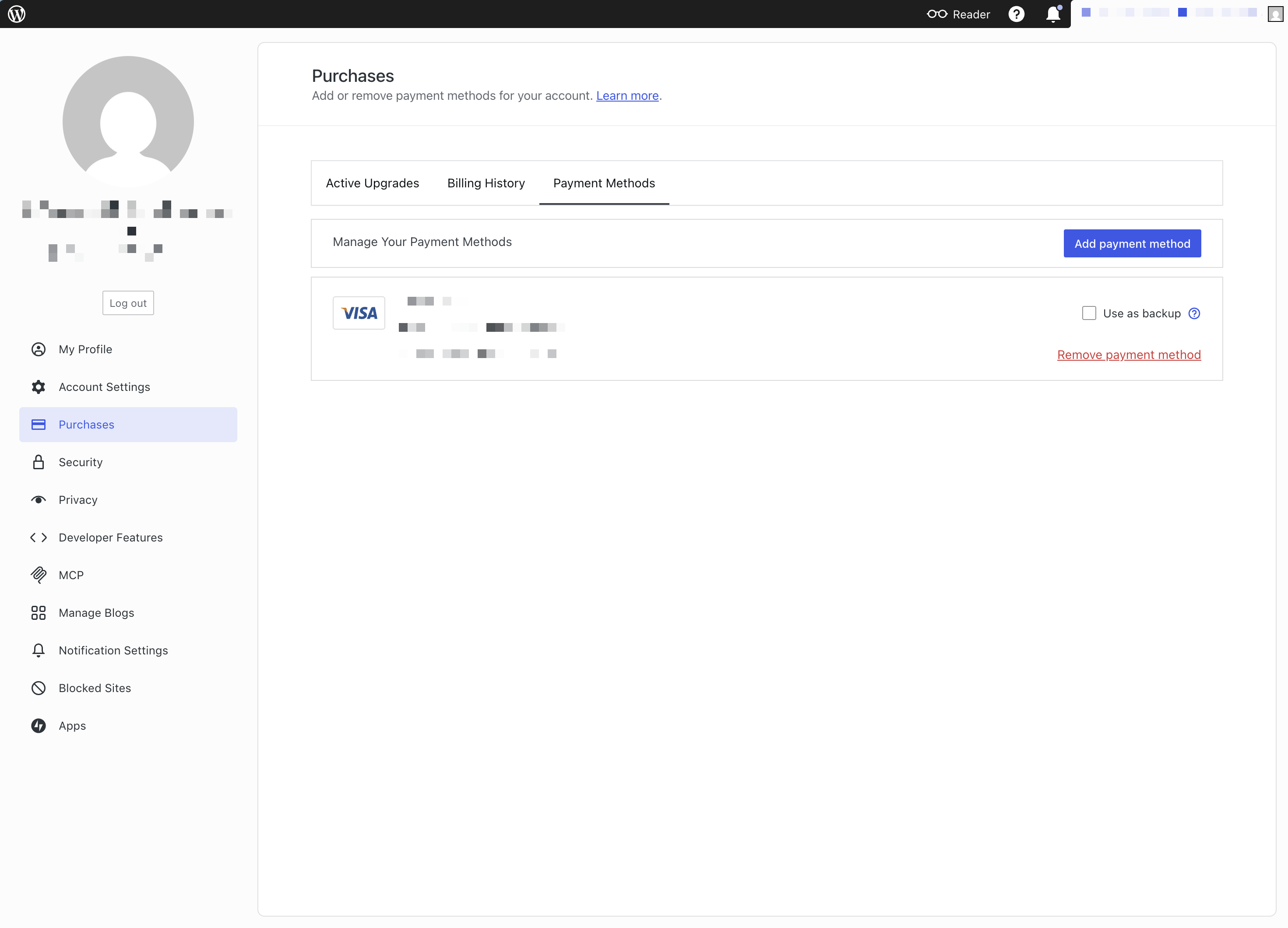
If you do not have a payment method on file, you will not be able to purchase new products that your agency has referred to you until you add a new payment method to your account.
If your payment method expires or is removed before your next renewal, your subscription may be interrupted. Please keep your payment method up to date to avoid disruption.
In the event there are issues with your payment method(s), you will be notified in advance to fix them before your subscription(s) lapse:
- If a payment method is missing, or card will be expired before the renewal date, we’ll let you know in advance:
- Monthly subscriptions: 14 and 7 days before subscription renewal, respectively.
- Yearly subscriptions: 30 and 7 days before subscription renewal, respectively.
- If we encounter any unforeseen issues during the actual subscription renewal, you’ll also be notified and given a short grace period to remedy. If you have problems or concerns, please reach out to us immediately, and we’ll work with you to ensure no disruption to your subscriptions.
When adding products to your website, your agency will send you an invoice via email and attach a message. This invoice will include:
- Any products or hosting for your website that your agency wishes to install and manage on your behalf.
- The monthly price of each product.
- The total monthly price of all products.
- A link to pay.
- When you click “Pay now,” you’ll be taken to a checkout to add a payment method and confirm your purchase.
- If you don’t have a WordPress.com account, Automattic for Agencies will create one for you. This will allow you to manage your payment methods, and cancel products at any time.
- Click “Approve” to continue to check out.
After your WordPress.com account is set up, or you’ve logged in, you’ll be brought to the checkout screen. Here you’ll be able to review all the products or hosting your agency that the agency has sent over for you to purchase.
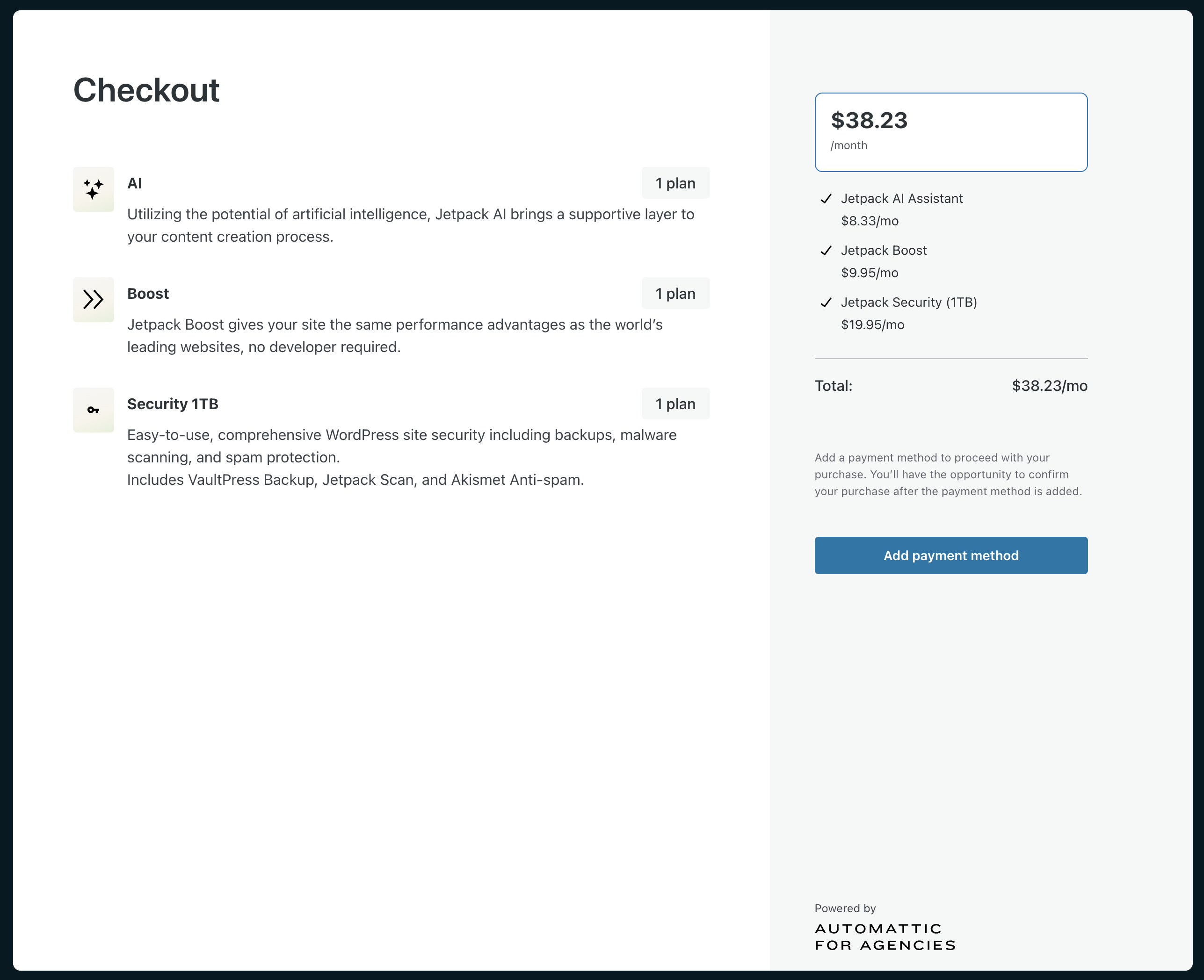
Your first visit will require you to add a payment method to your account. Automattic for Agencies use Stripe, which holds the highest security certification in the industry.
You’ll have the opportunity to add or modify your payment methods later, but the first card will automatically be set as your primary payment method.
Once your payment method is added, you’ll be asked to review and confirm the purchase.

After you’ve successfully made the purchase, you’ll be brought to your product management screen where you can see that your products are now active.
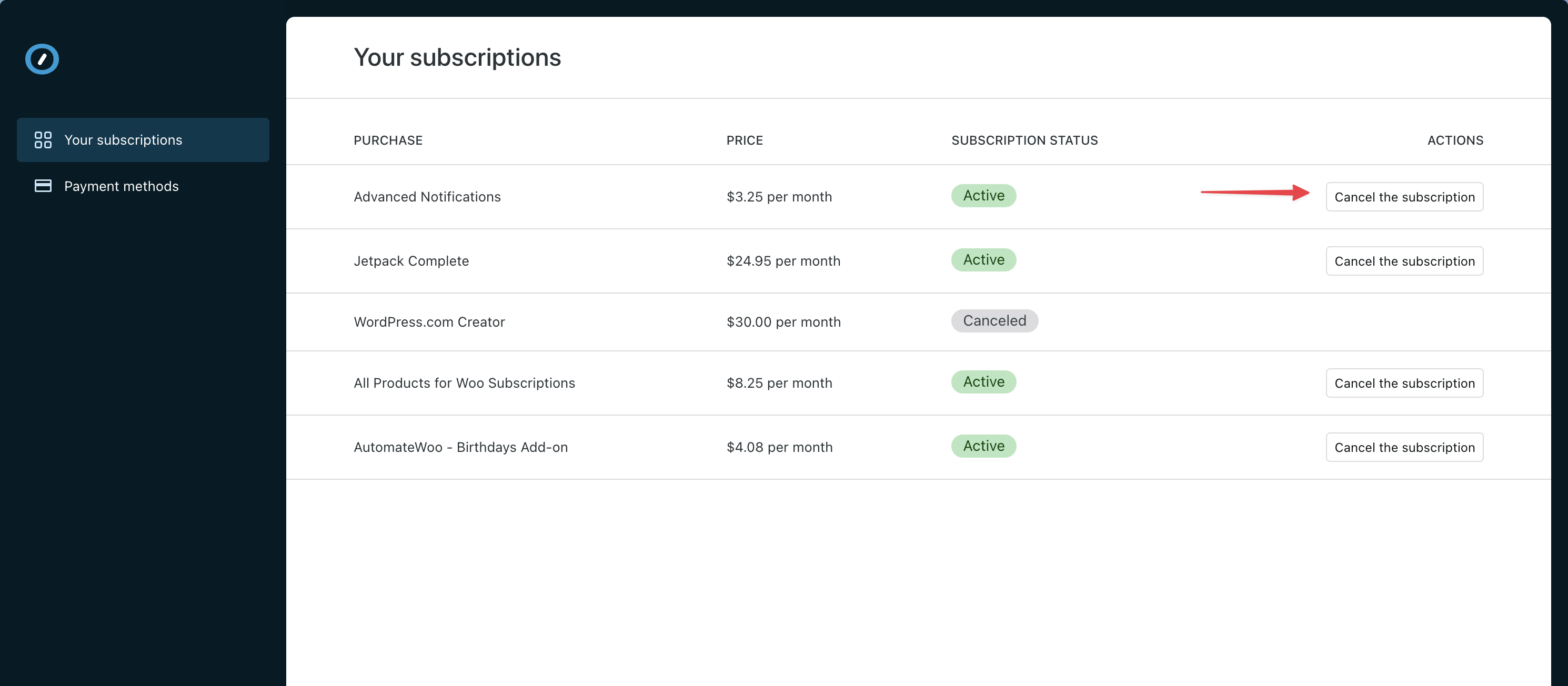
For now, this area is simple. Showing you the products you own, the monthly price of each product, its status, and providing ways to cancel a product.
You don’t need to do anything else. As soon as you complete the payment, the agency will receive a notification that the licenses you purchased are available for them to use. They’ll begin setting up the products you purchased, and will follow up with you if anything else is needed.

- Subscriptions are billed on the 1st of every month.
- Your first bill will include a prorated amount for the current month, depending on which day you purchased these products.
- You can cancel these products at any time.
If you cancel (revoke) any product mid-subscription period, you will be billed a prorated amount that month. Example: If you cancel a product on July 10, when you’re billed on August 1st, it will only be for the 10 days in July the product was active.
Conversely, if you purchase a product on July 25, when you receive your bill on August 1st, you’ll only be billed for the 7 days it was active in July.
To cancel a product that you have previously paid for, navigate to your subscriptions area. Each product will display a “Cancel the subscription” button. Once you click cancel, a dialog will display asking you to confirm.
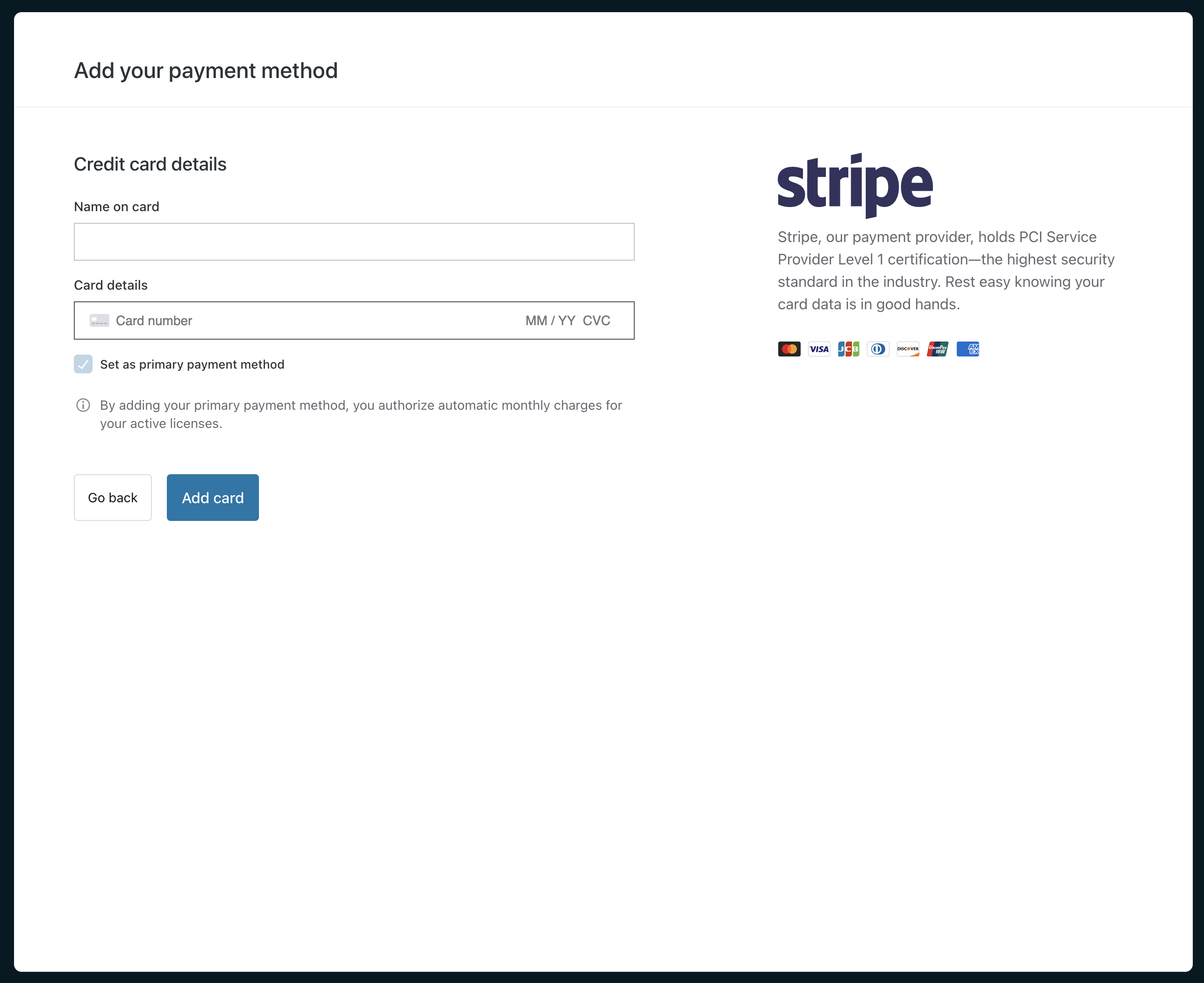
During your first purchase you’ll be asked to add a payment method. To do so, simply enter your name and credit card details.
- If this is your only payment method, the checkbox below “Set as primary payment method” will be automatically checked.
- Once you add your card, you’ll be brought back to the checkout to confirm your purchase.
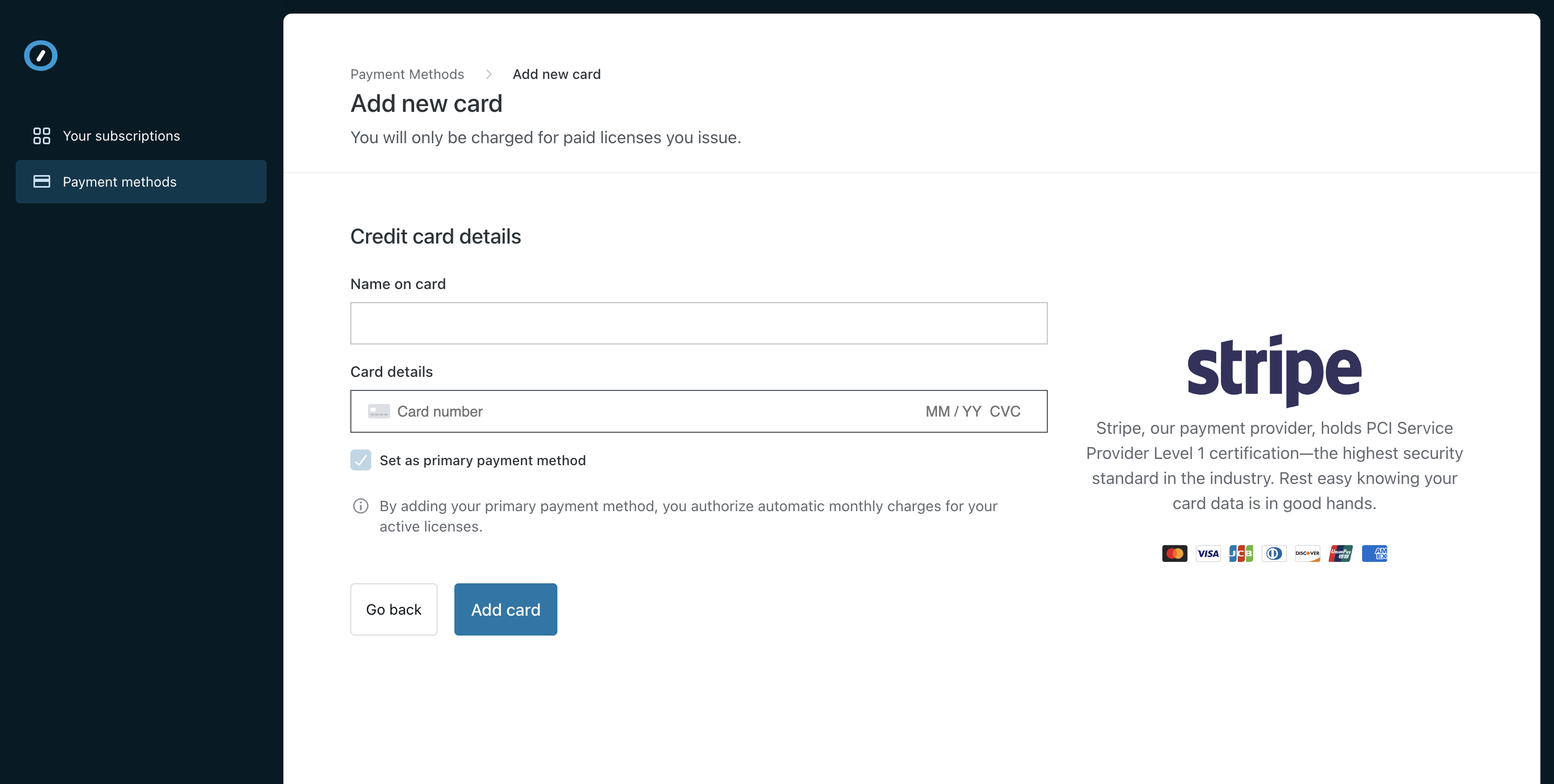
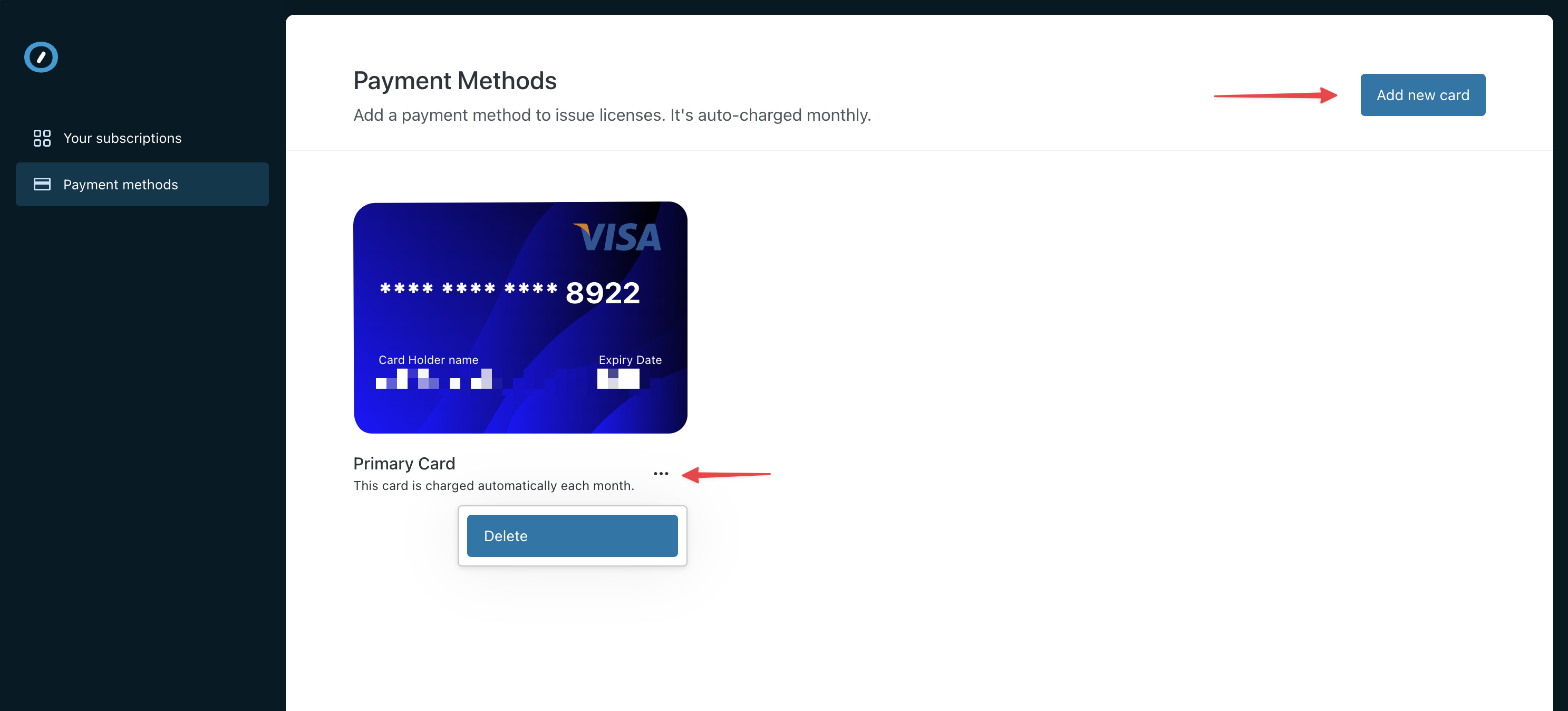
To add or delete payment methods, navigate to the payment methods area within your dashboard.
- Add a payment method by clicking on the button at the top of the page.
- Remove a payment method by clicking on the
...menu below each card.
If you do not have a payment method on file, you will not be able to purchase new products that your agency has invoiced you for, until you add a new payment method to your account.
If you remove all saved payment methods before being charged for the month, you will also need to pay any past-due invoices.
 Automattic for Agencies - Knowledge Base